This report shows the detailed routing flowchart report of the account through Account Router.
To view the Account Flow Report, follow these steps:
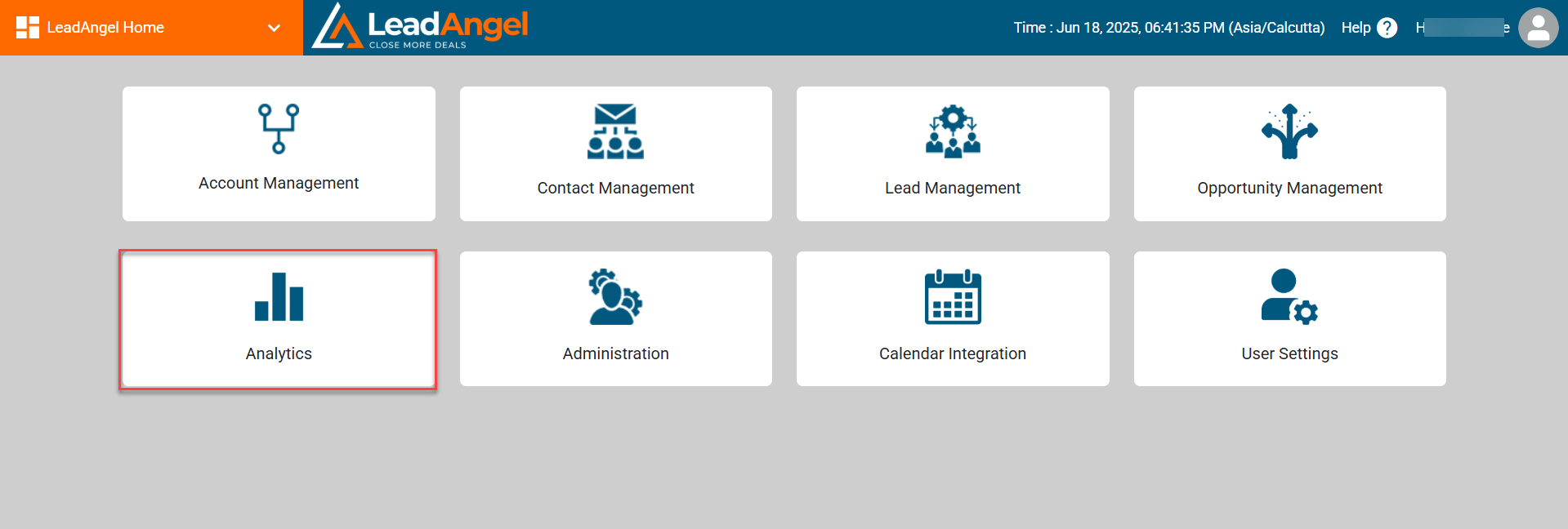
- Log in to www.app.leadangel.com and click on Analytics.
- Scroll down to Visual Flow Report and Click on the Account Flow Report.
- After clicking on the Account Flow Report, enter the CRM ID for which you want to view the report and click on the search button.
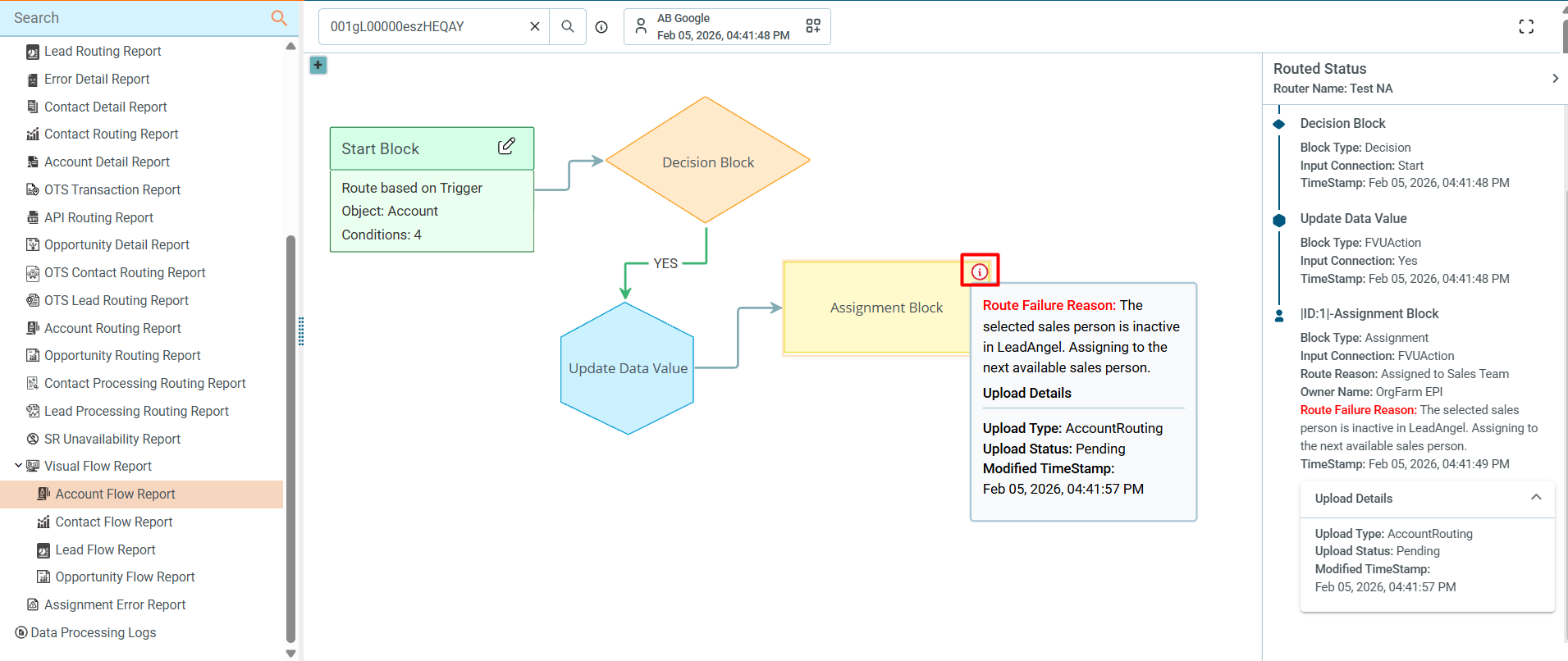
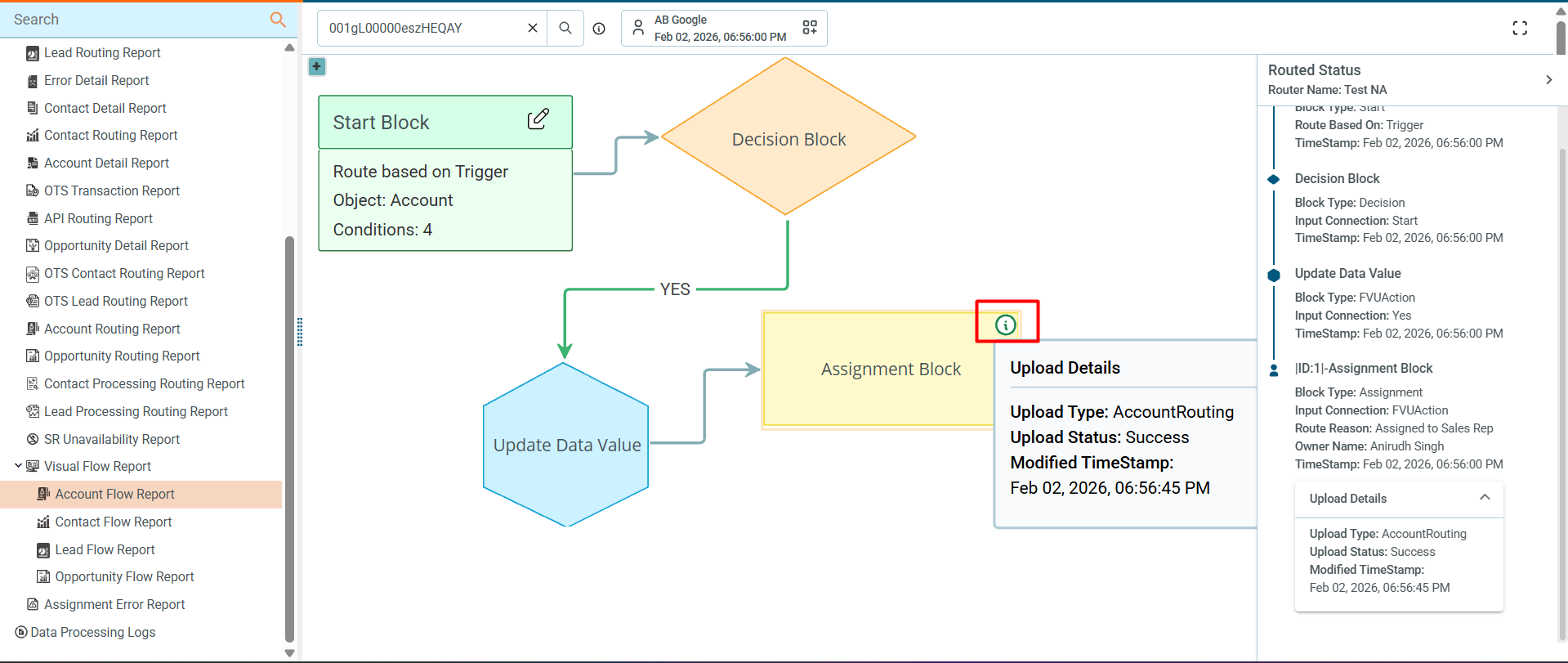
- After entering the CRM ID and clicking on the search button, the router flowchart along with the routed status will appear.
- A red icon indicates that the Assignment Block’s upload status is in “Pending” or “Error”.
- A green icon indicates that the Assignment Block’s upload status has been successfully completed.
- A red icon indicates that the Assignment Block’s upload status is in “Pending” or “Error”.
If the entered CRM ID has been routed only once, the report will display. Otherwise, a dialog box will appear showing the Routed List, from which you can select any routing time.