This report shows the detailed routing flowchart report of the Lead routed through any Lead Router.
To view the Lead Flow Report, follow these steps:
- Log in to www.app.leadangel.com and click on Analytics.
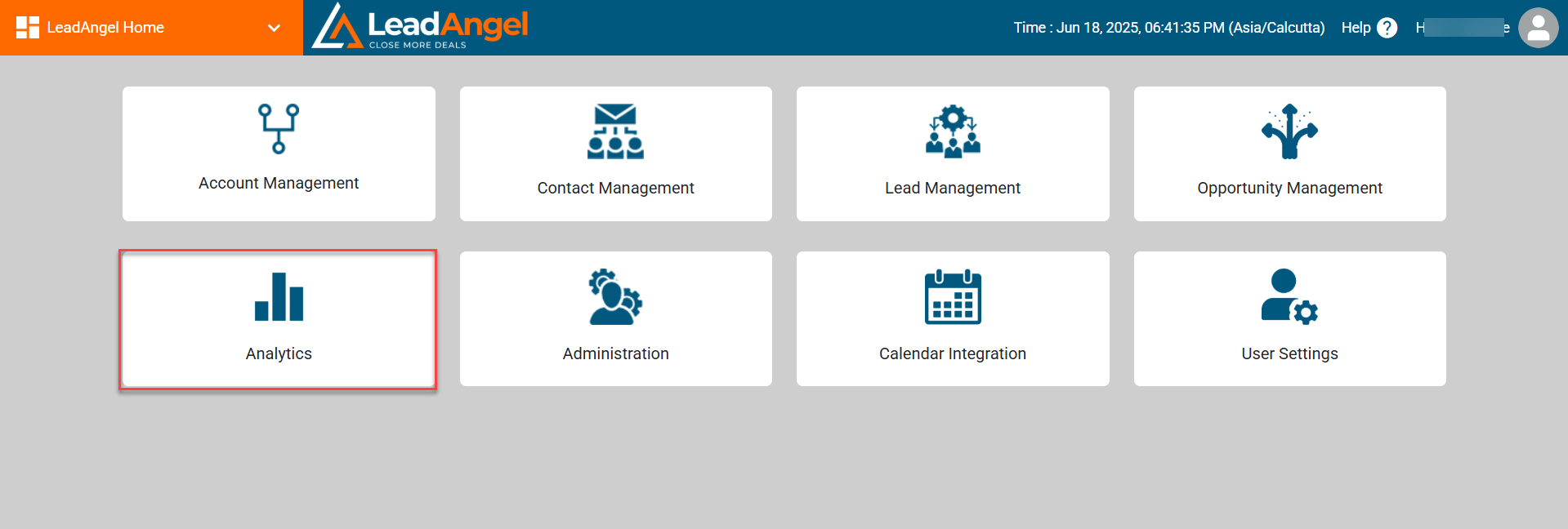
- Scroll down to Visual Flow Report and Click on the Lead Flow Report.
- After clicking on the Lead Flow Report, enter the CRM ID for which you want to view the report and click on the search button.
- After entering the CRM ID and clicking on the search button, the router flowchart along with the routed status will appear.
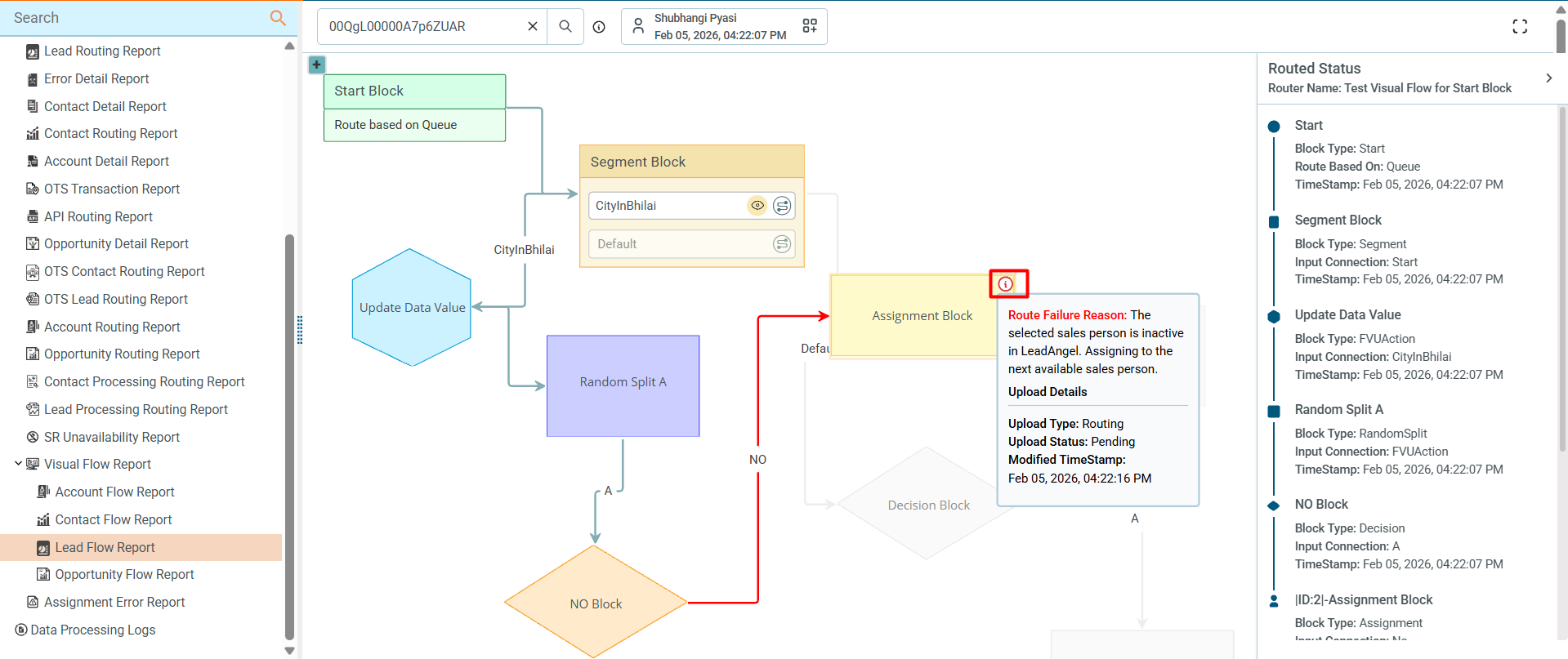
- When a red icon appears on the Assignment Block, it indicates that its upload status is currently in “Pending” or “Error” within the visual lead flow.
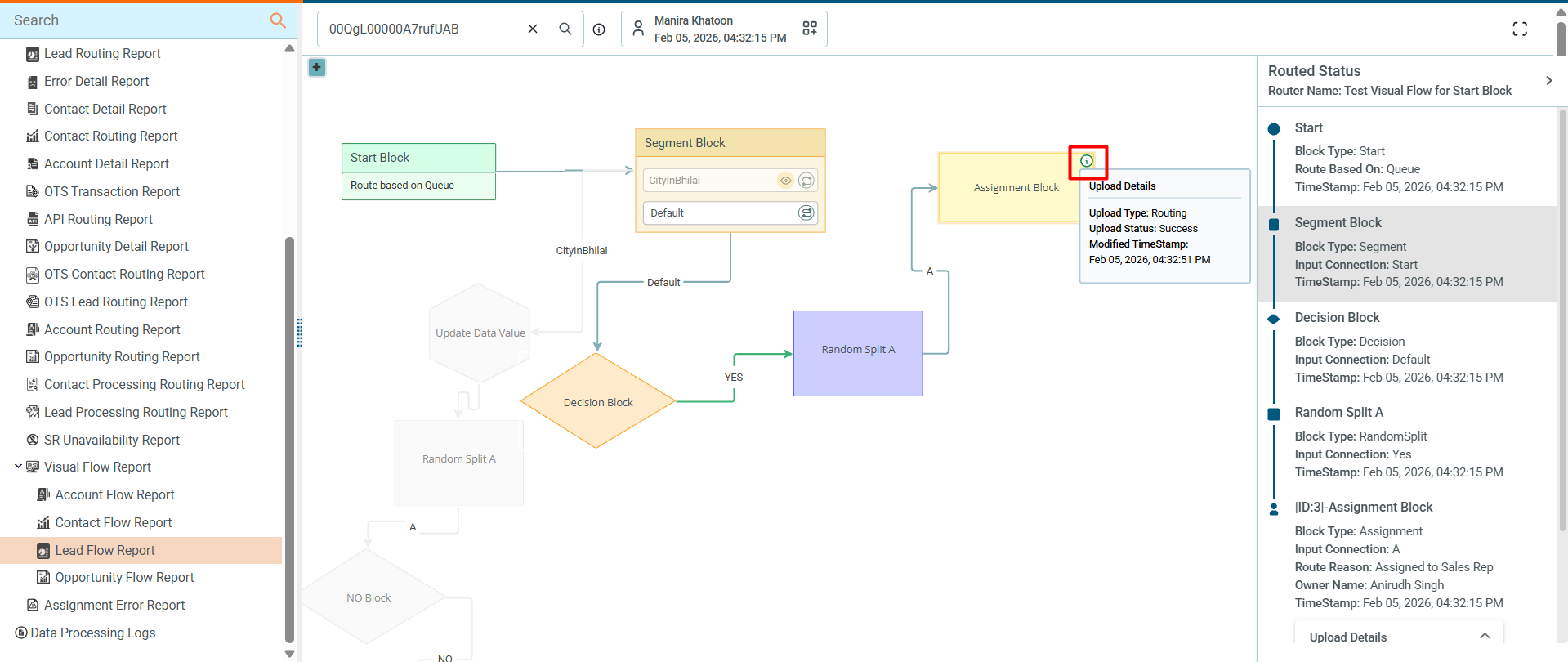
- When a green icon is displayed, it indicates that the Assignment Block’s upload status has been successfully completed.
- When a red icon appears on the Assignment Block, it indicates that its upload status is currently in “Pending” or “Error” within the visual lead flow.
If the entered CRM ID has been routed only once, the report will display. Otherwise, a dialog box will appear showing the Routed List, from which you can select any routing time.