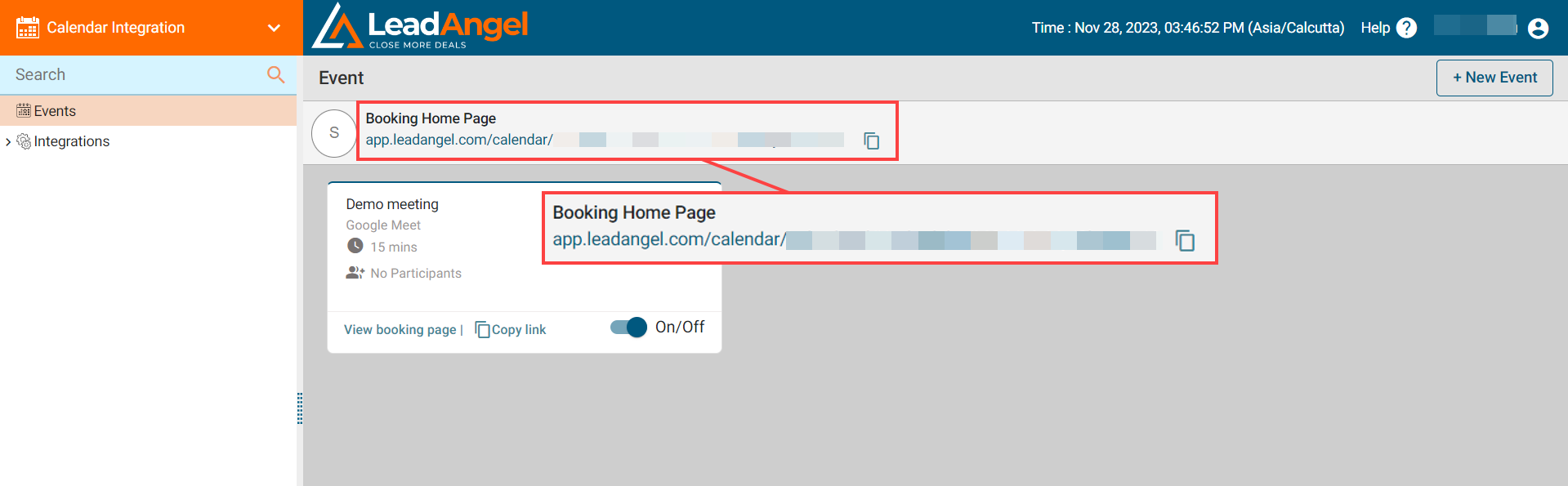
You can preview the event booking experience directly from the Event tile page.
¶ How to Access the Booking Page
- Go to Event List.
- Click View Booking Page on the event tile.
¶ Invitee Flow
- Invitee is redirected to the booking page.
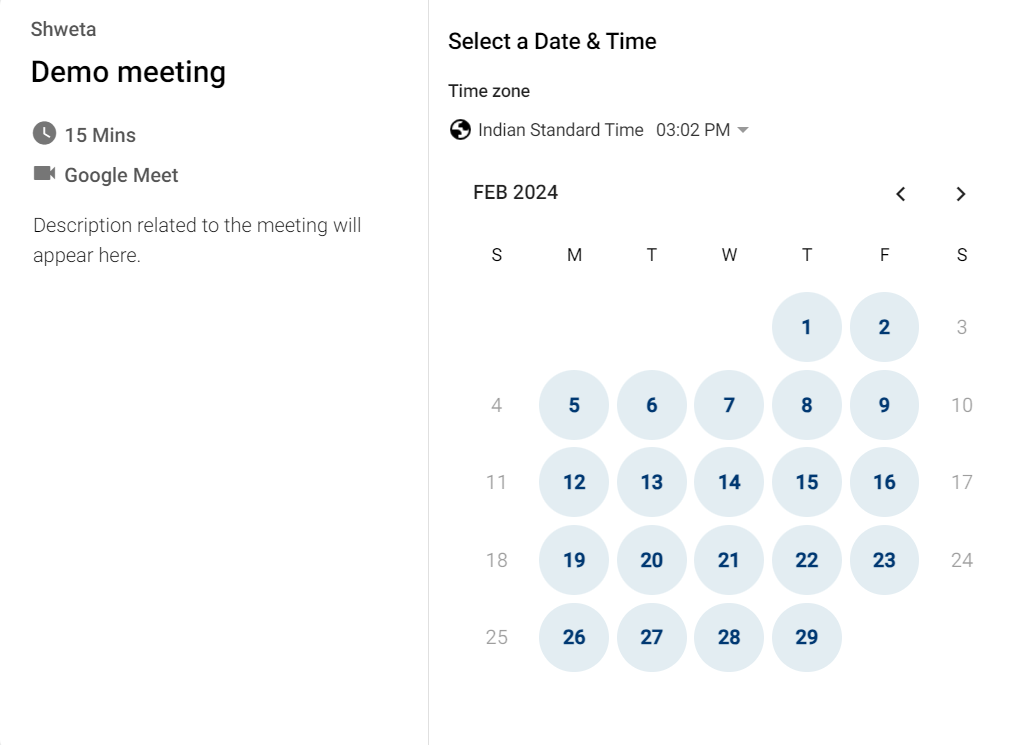
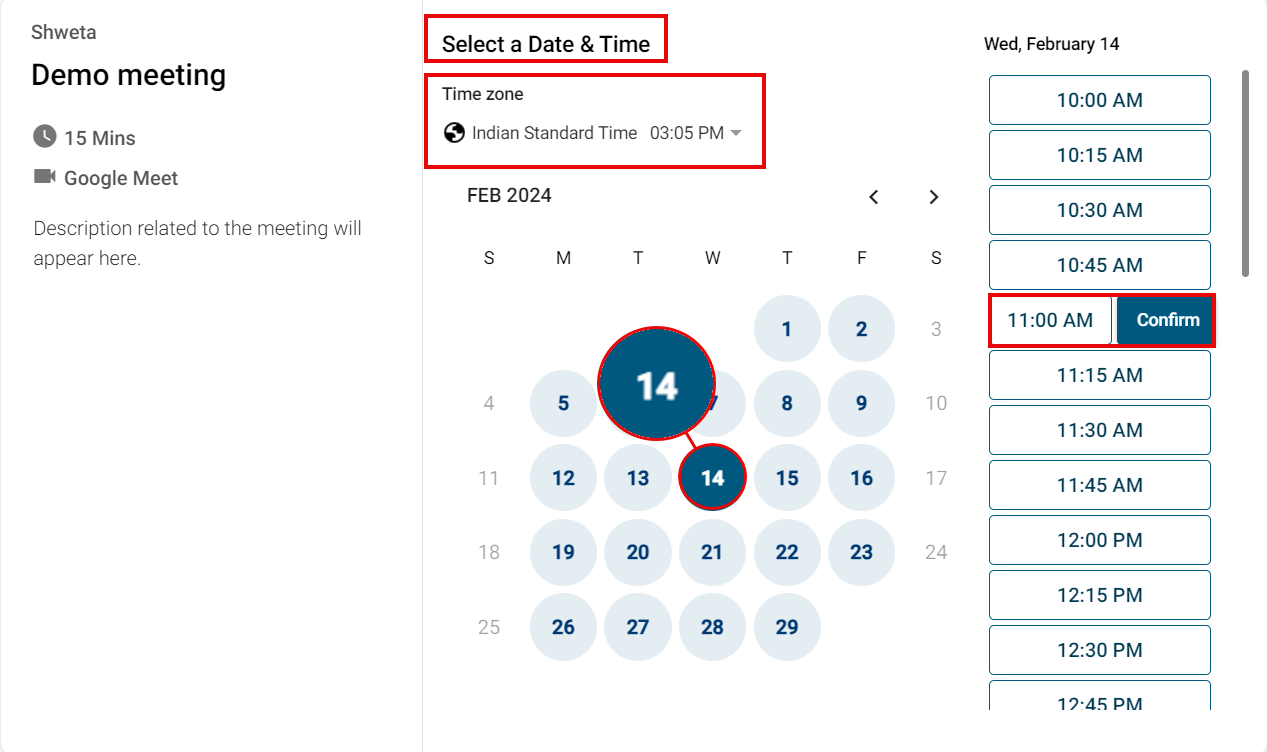
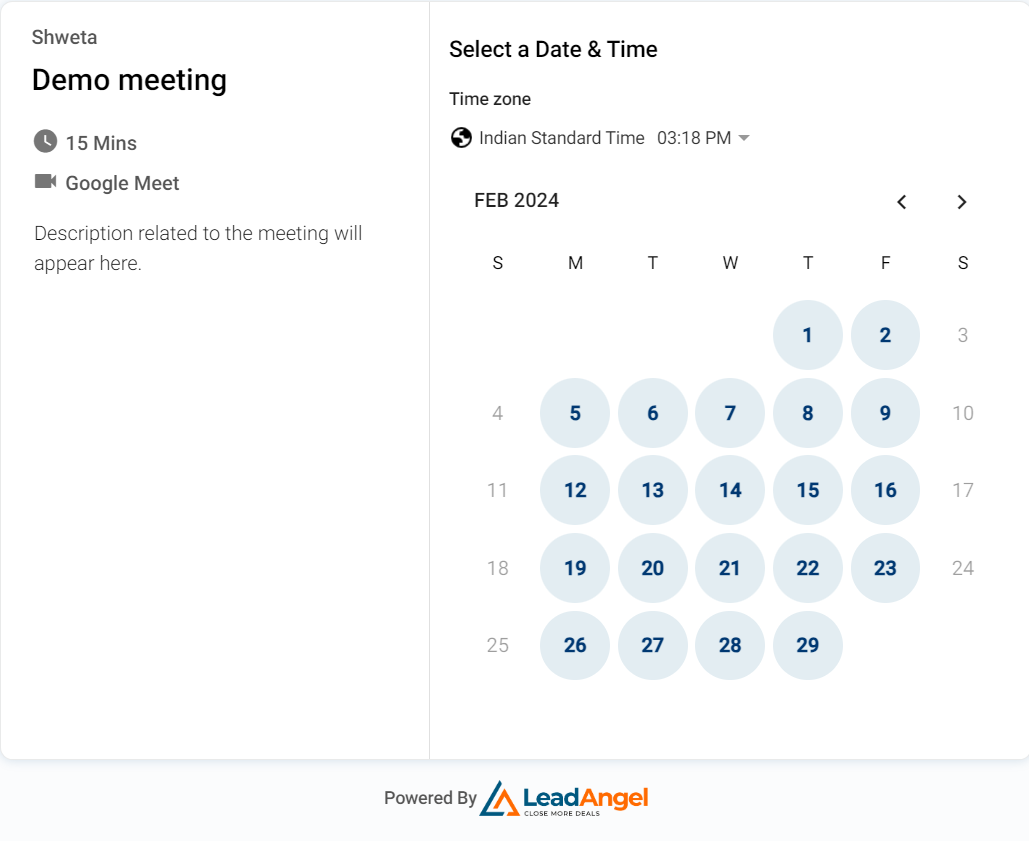
- Select a date and time zone.
- Choose an available time slot and click Confirm.
¶ Enter Details
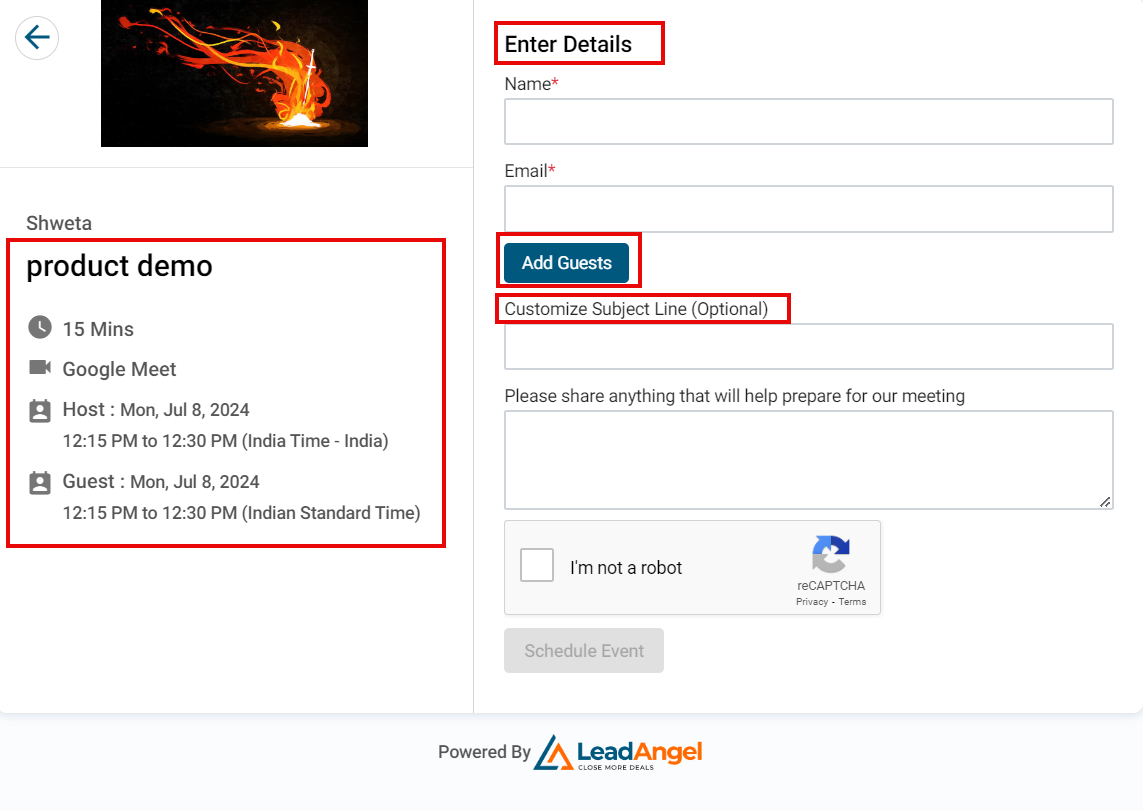
- Fill in your name, email, and other required details.
- Click Add Guests (optional) to include up to 20 additional invitees.
- You can customize the Subject Line or leave it blank to use the default.
- Complete the ReCaptcha.
- Click Schedule Event.
¶ Confirmation & Notification
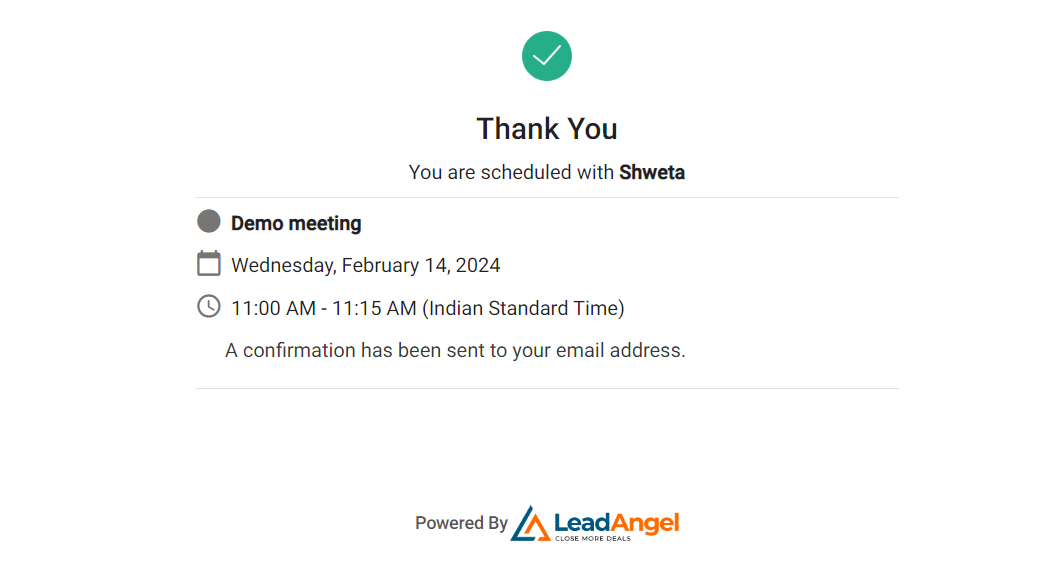
- A confirmation page will appear.
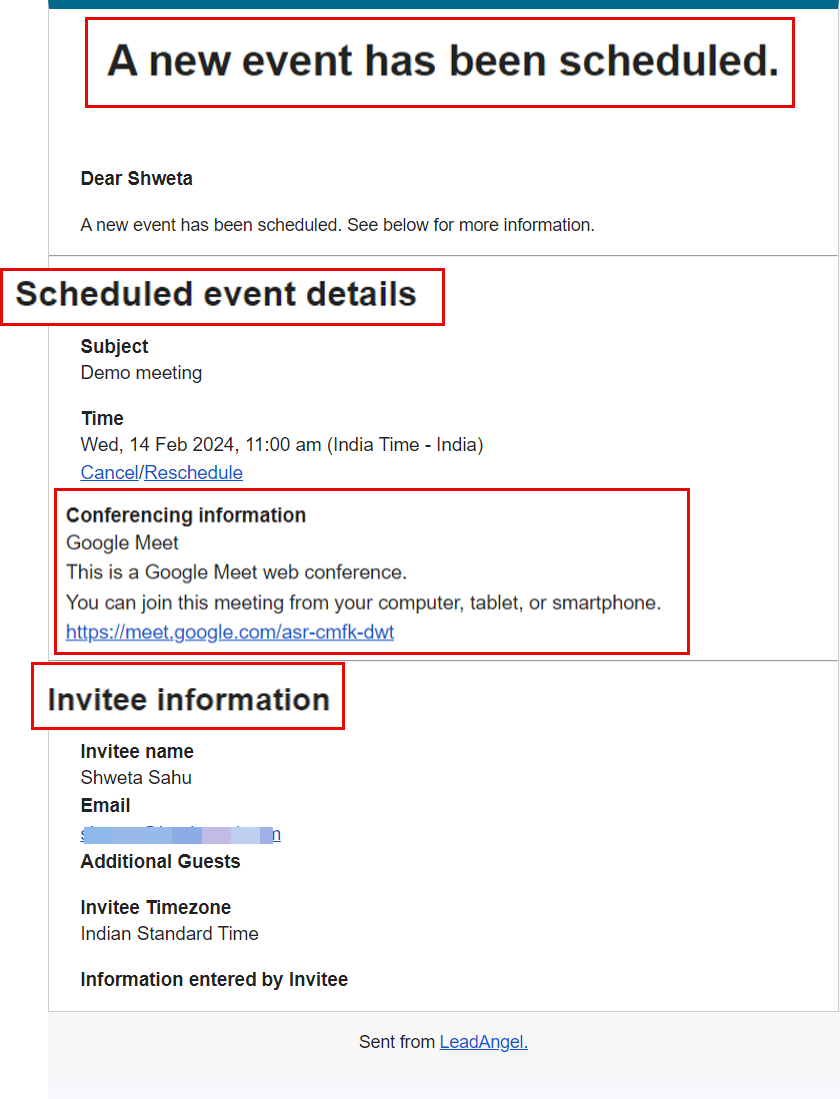
- Both the organizer and invitees receive an email notification with event details.
¶ Cancel or Reschedule
- Use the link in the confirmation email to cancel or reschedule.
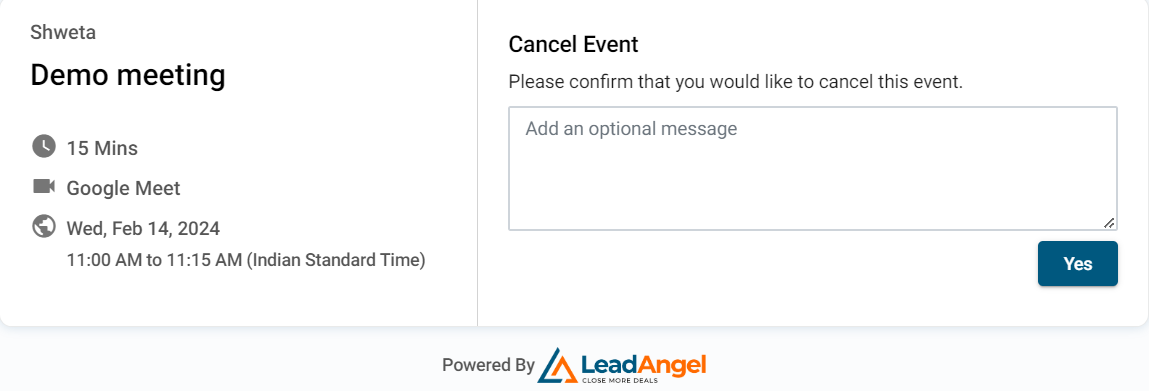
- To cancel: Click the link → Enter an optional message → Click Yes.
- To reschedule: Click the link → Choose a new date/time → Click Confirm.
¶ Sync with Google Calendar
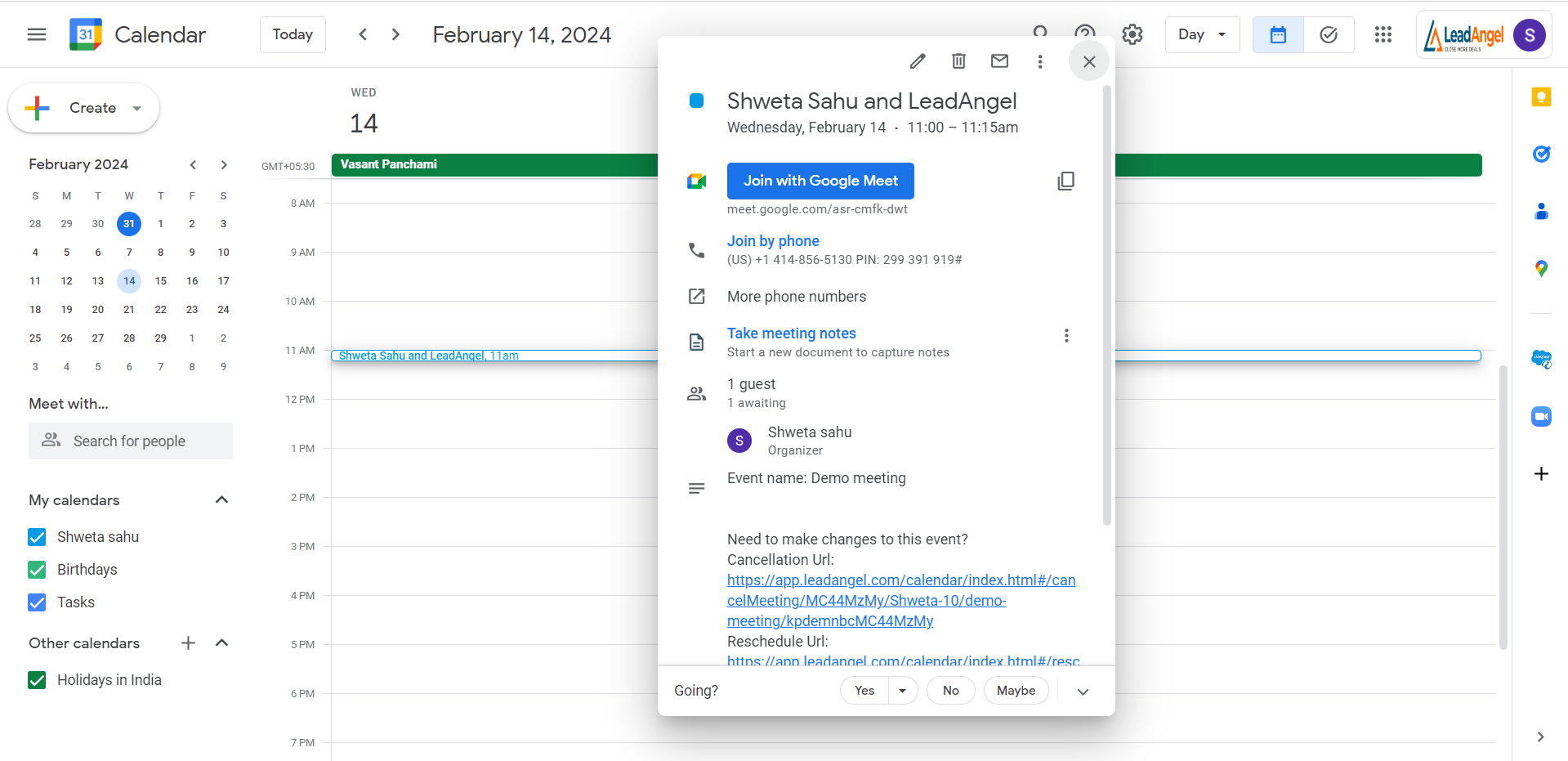
- After scheduling, click the Google Calendar link on the confirmation page.
- You’ll be redirected to add the event to your calendar.