¶ What is Account Executive (AE) to SDR Mapping?
AE to SDR Mapping sends leads assigned to an Account Executive (AE) directly to the mapped Sales Development Representative (SDR) instead of the AE. This is useful when AEs work closely one-on-one with SDRs.
¶ How does the mapping work?
- Each AE can be mapped to one SDR.
- One SDR can be mapped to multiple AEs.
- When routing, if the Assign to Mapped ISR option is selected, leads go to the mapped SDR instead of the AE.
- If both AE and SDR are inactive, routing is skipped.
- If an SDR is inactive, the lead routes back to the active AE.
Example:
If AE1 is mapped to SDR1, leads for AE1 will be sent to SDR1 when the option is enabled.
¶ How to create or update AE to SDR Mapping?
- Log in to LeadAngel.
- Click Contact Management.
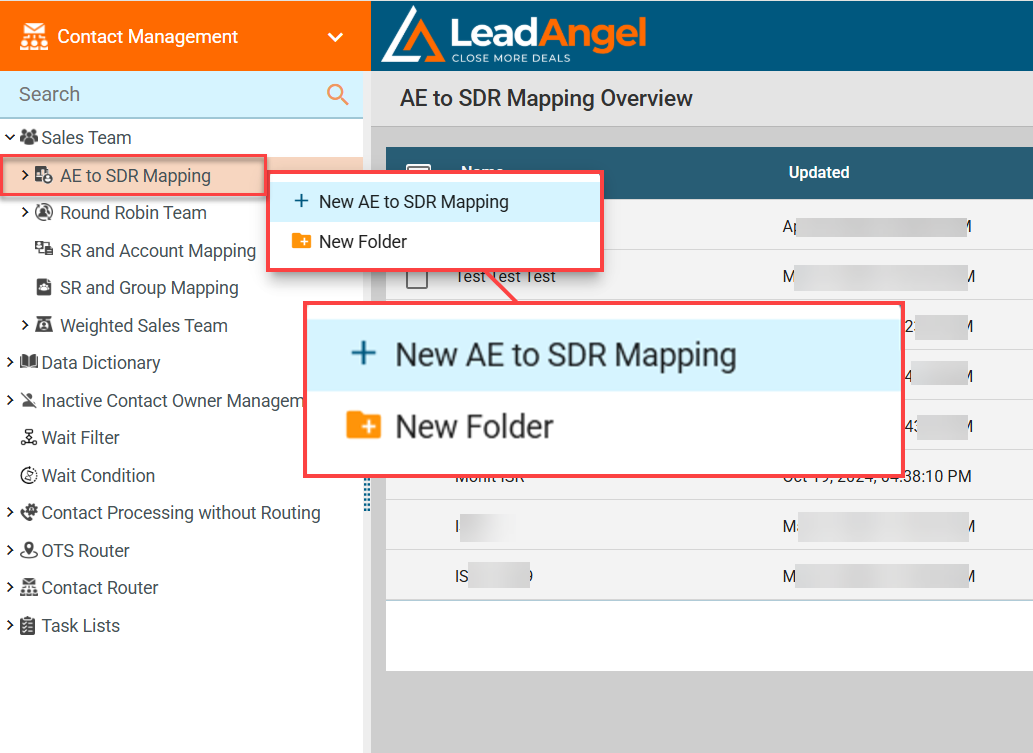
- Go to Sales Team > Account Executive (AE) to SDR Mapping. Right-click and select + New Sales Rep to ISR Mapping.
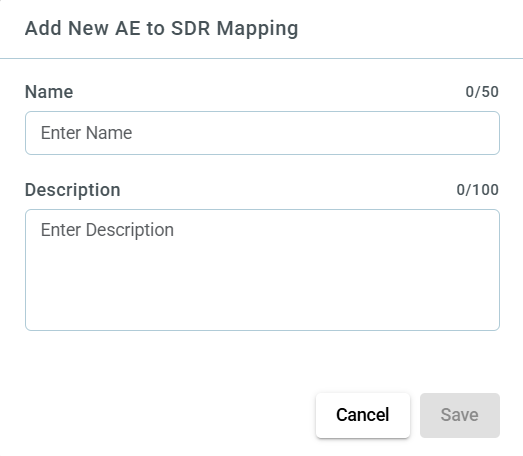
- Enter a unique mapping name and description, then click Save.
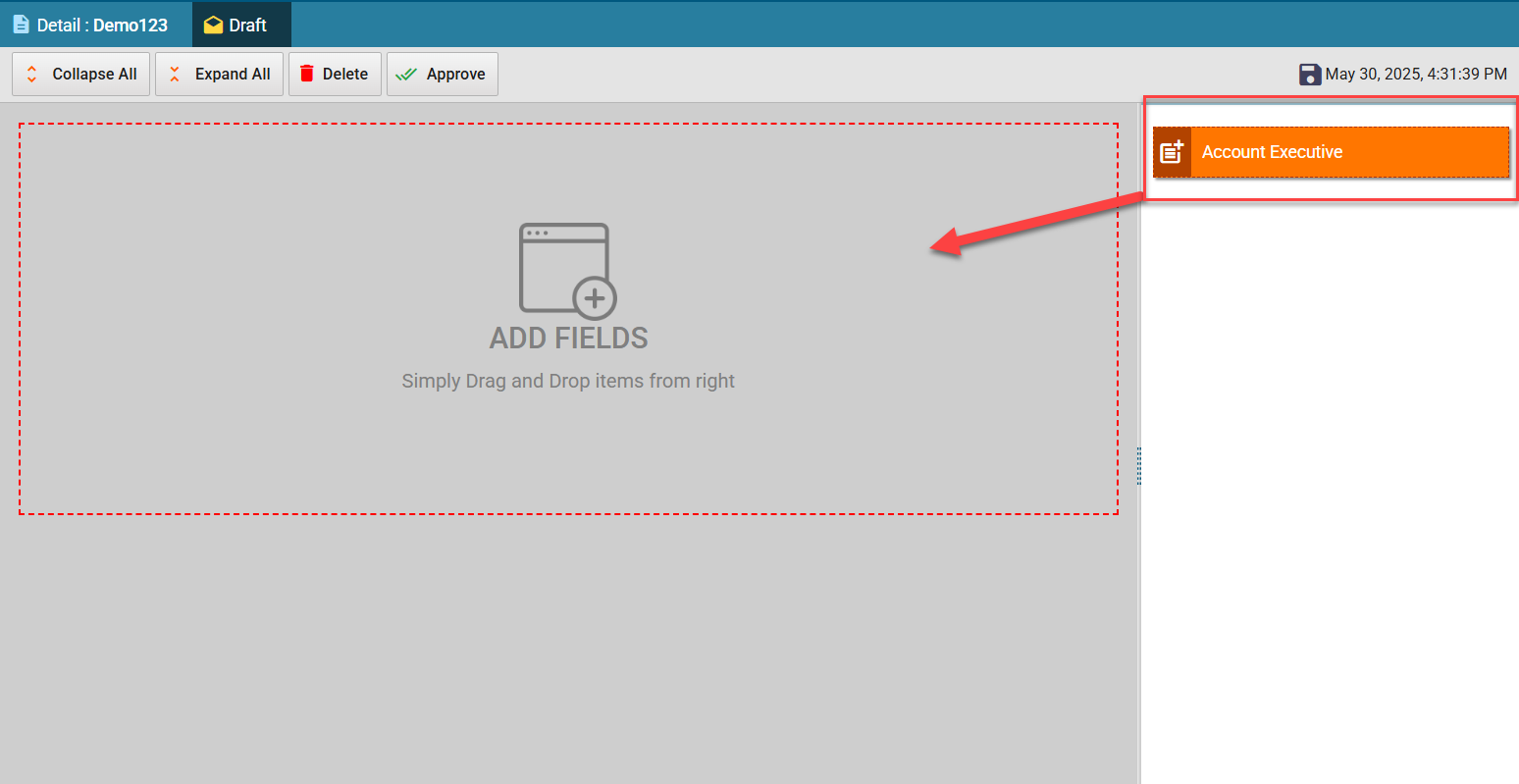
- Drag the Account Executive field into the ADD FIELDS section.
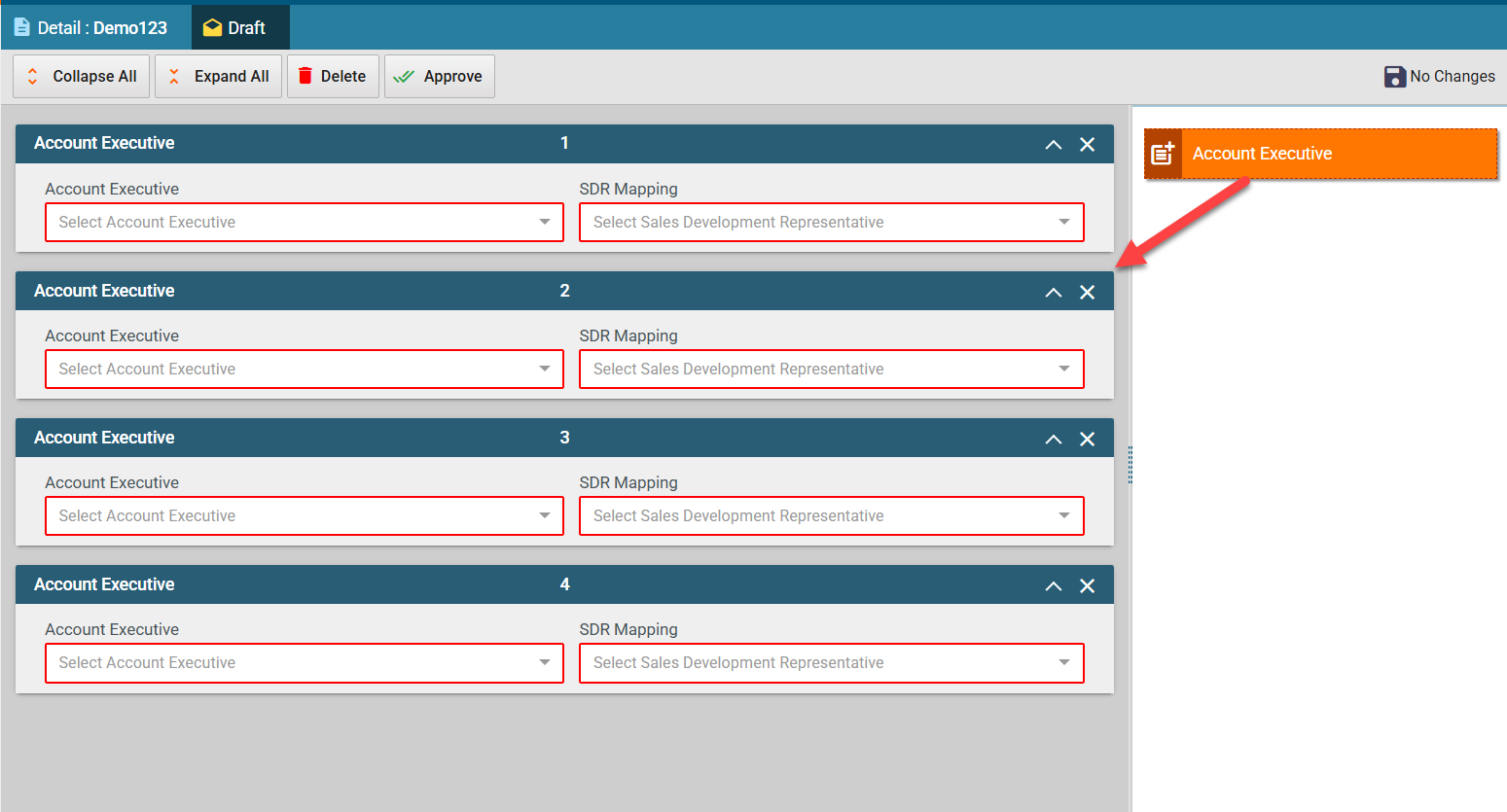
- Select the AE name from the Account Executive dropdown and the SDR name from the SDR Mapping dropdown.
- If the SDR is inactive, the lead will be assigned back to the AE.
- An AE can appear only once in the mapping, but an SDR can be mapped to multiple AEs.
- Repeat steps 5 and 6 to add more mappings as needed.
- To approve the mapping, right-click the mapping name and select Approve.
- Confirm approval by clicking Approve in the confirmation dialog.
Note: You can see the Email Alert Template which is using this particular AE to SDR Mapping in the “Used by” section under the Details tab