¶ What is a Lead Router?
A Lead Router is a flow builder made of assignment blocks in LeadAngel. It defines how leads are assigned in real time within your CRM based on LeadAngel routing rules .
There are 3 ways to trigger the router
- vyakar queue / Feeder
- API
- Trigger based
¶ How do I create a new Lead Router?
¶ Step 1: Log in and Navigate
- Go to www.app.leadangel.com
- Click on Lead Management.
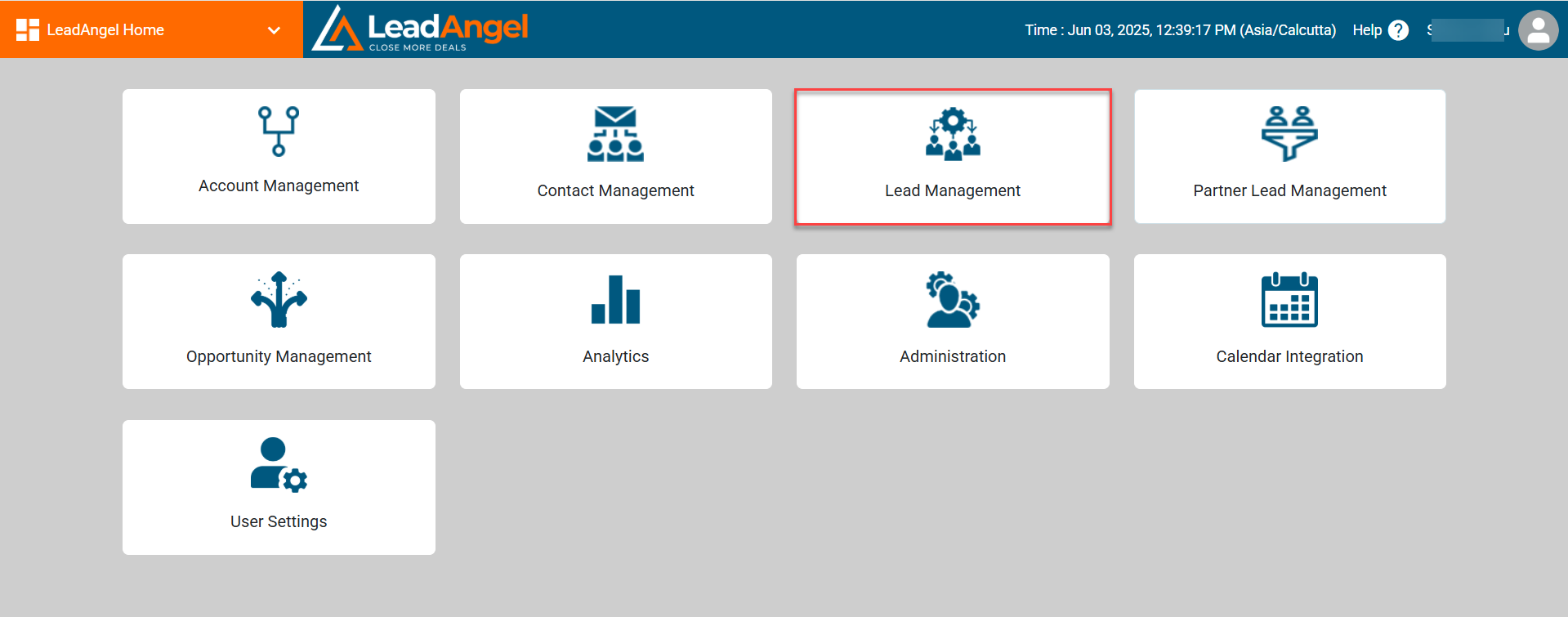
¶ Step 2: Create a Lead Router
-
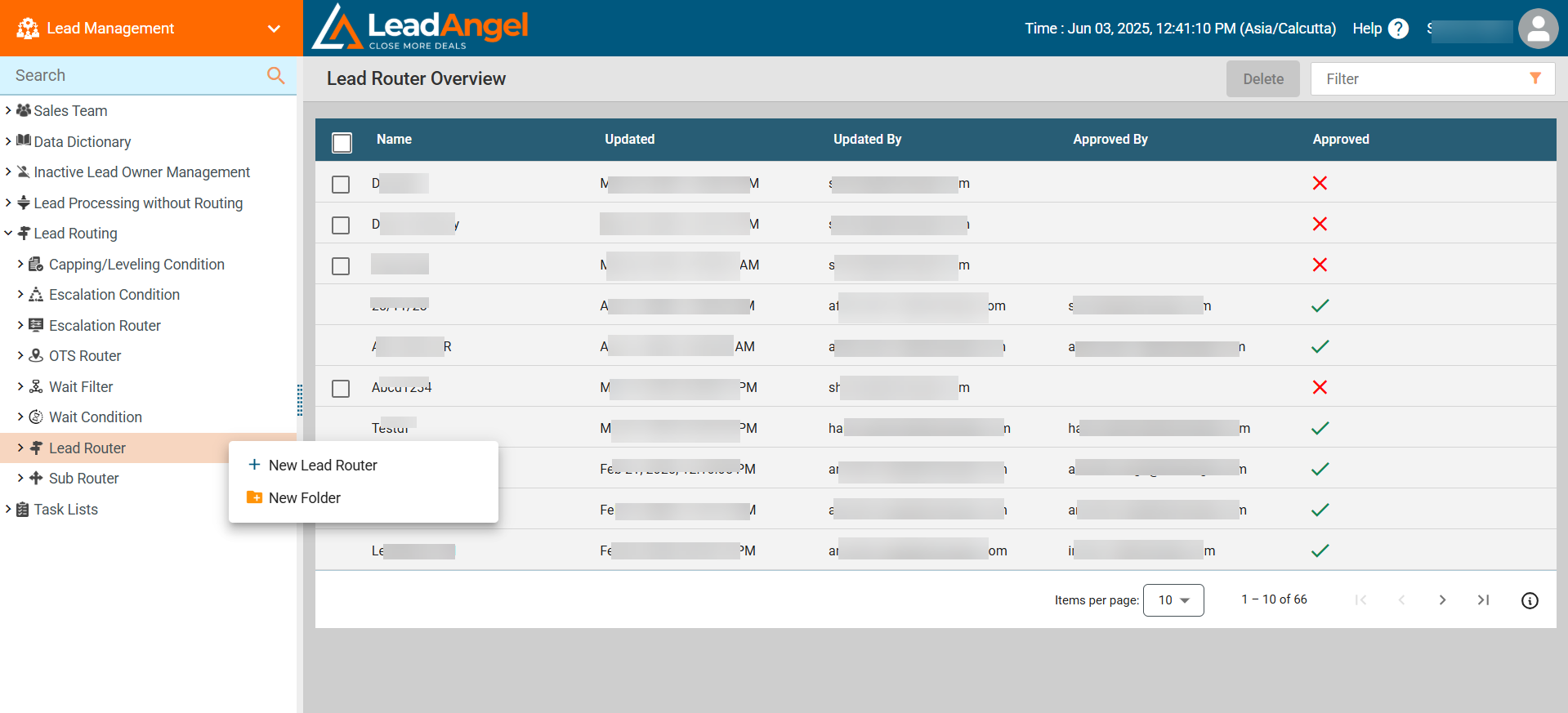
Right-click on Lead Router
-
Click + New Lead Router
-
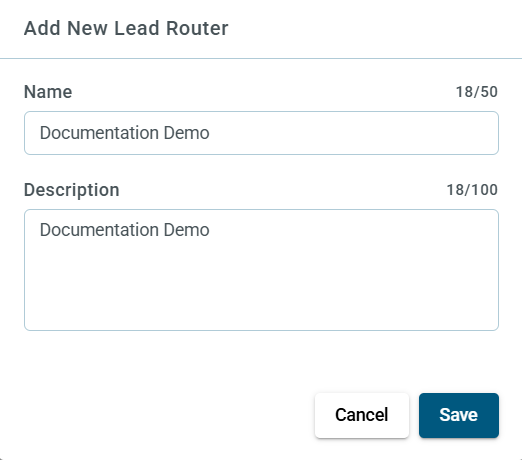
In the dialog box, enter:
- A unique name
- A short description
-
Click Save
The new lead router will be created.
¶ What’s next after creating a Lead Router?
¶ Step 3: Add Components
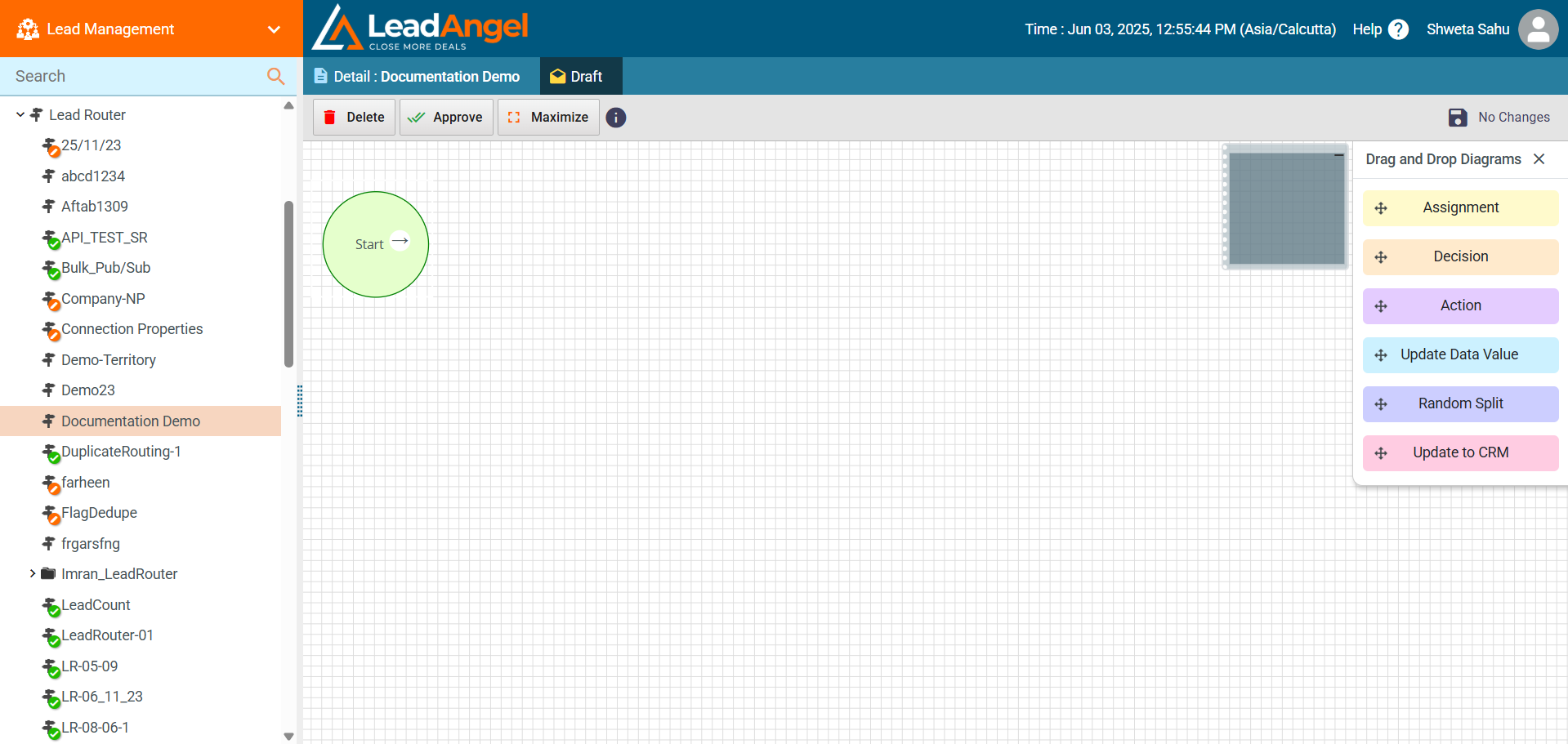
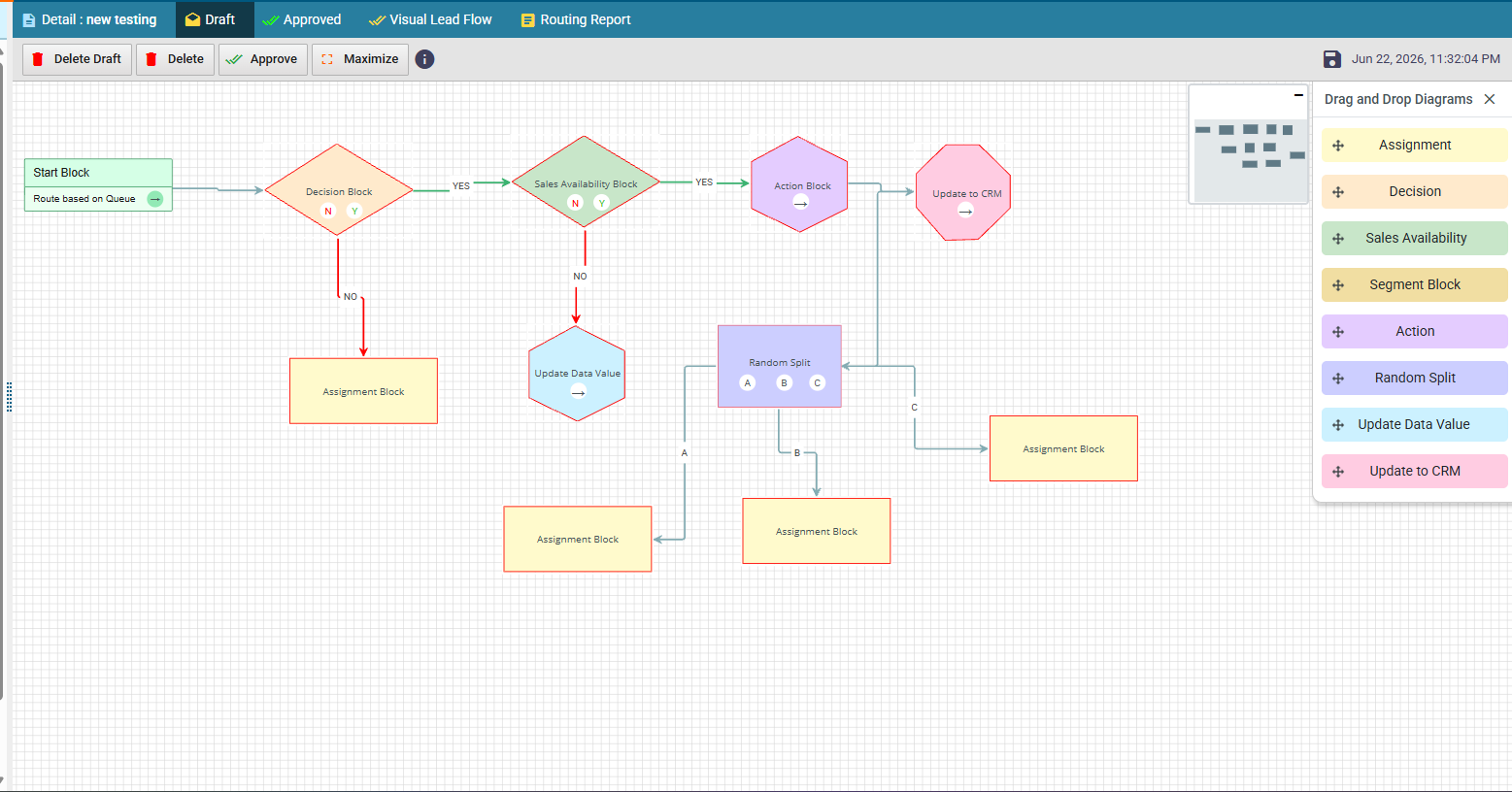
From the Drag and Drop Diagram panel on the right, drag and drop:
- Decision Block
- Assignment
- Sales Availability
- Action Block
- Update to CRM
- Random Split
- Update Data Value
¶ Step 4: Add Sales Availability Block
The Sales Availability block is a new decision block that checks whether a sales representative or sales team is available before continuing the routing flow.
Key Features
- Add a Sales Availability block to the routing flow to validate availability before assignment.
- Choose one of the following availability checks:
- Check Sales Rep Availability
- Check Sales Team Availability
Check Sales Rep Availability
- When selected, choose one or more sales reps and evaluate their availability using one of these options:
- Active working hours based on CRM profile
- Current availability from the integrated calendar
- Current availability in Microsoft Teams
- Current availability in HubSpot profile
- Available anytime today based on the integrated calendar
- Available within the next X minutes based on the integrated calendar
Check Sales Team Availability
- Select a sales team to validate availability.
- The block uses the availability rules already configured for the selected sales team (Round Robin & Weighted Sales Team).
Routing Behavior
- The block checks whether any selected sales rep or any member of the selected sales team is available.
- If at least one user is available, the flow follows the Yes path.
- If no users are available, the flow follows the No path.
¶ Step 5: Configure Assignment Block
- Double-click the Assignment block
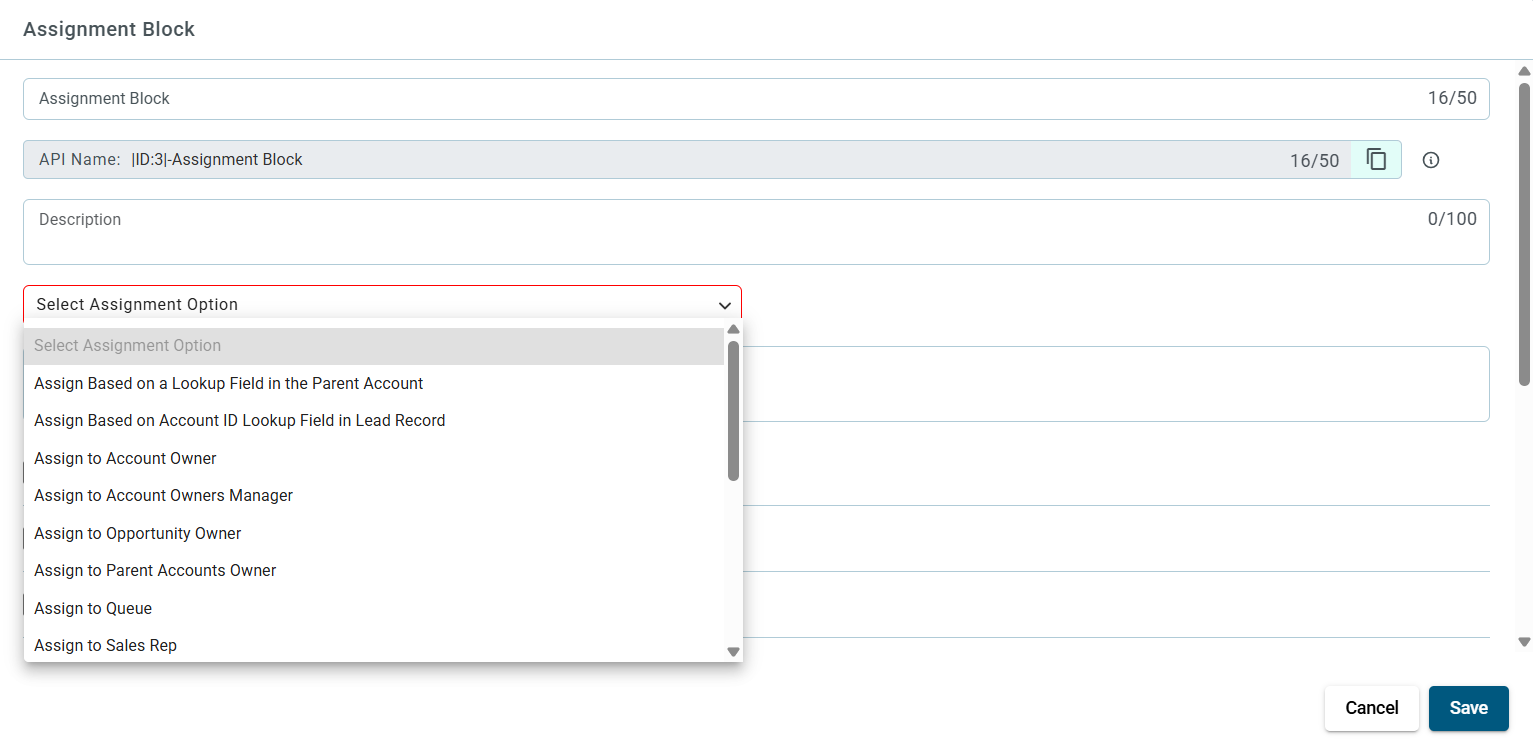
- Select the assignment option from the dropdown
Other Available Options:
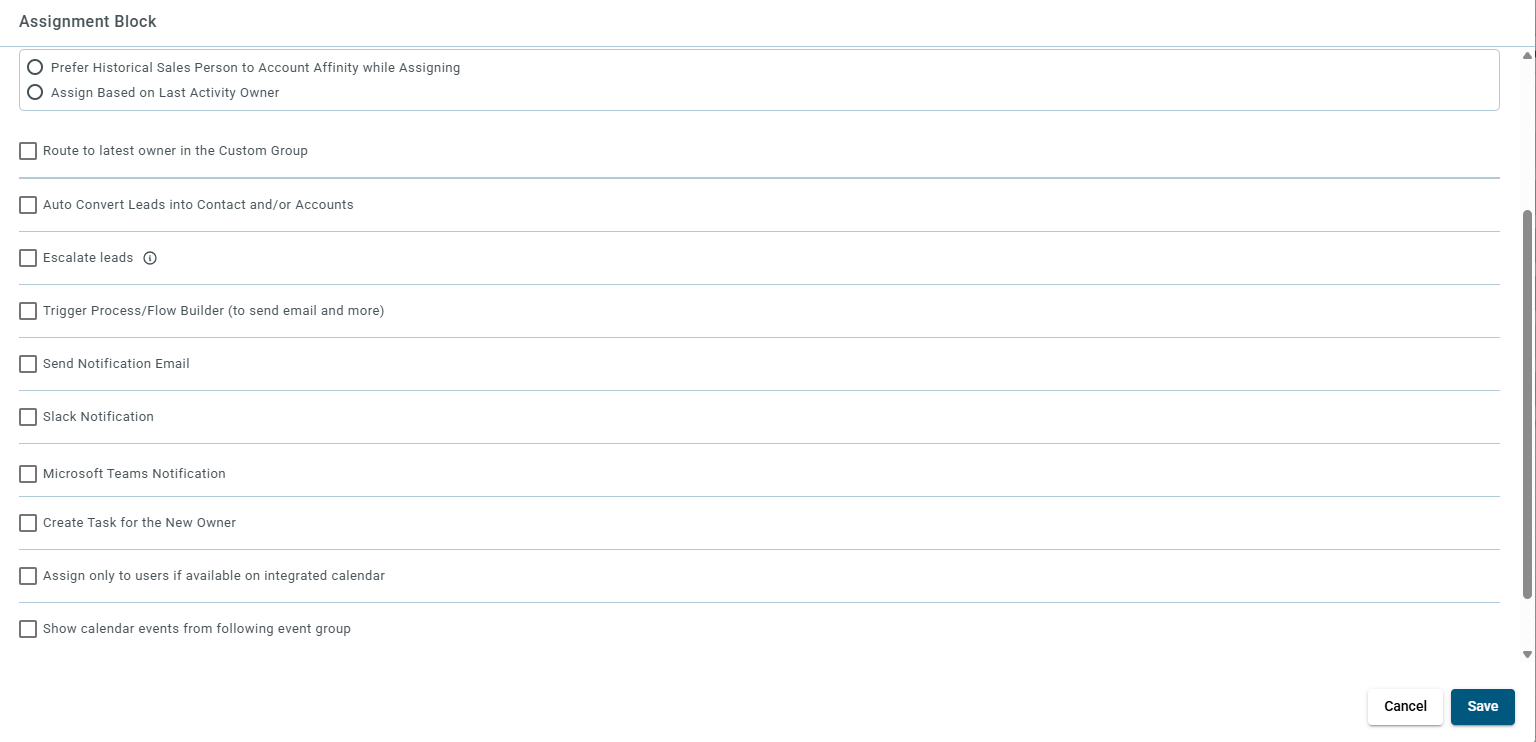
- Prefer historical salesperson to account affinity
- Assign to Sales Rep/Owner’s Mapped ISR
(Only appears for certain options like: Assign to accounts owner, Account to Sales Rep, etc.) - Assign based on Last Activity Owner
- Capping and Leveling condition while selecting "Assign to Sales Team" option.
Only one of the above options can be selected.
¶ What other routing options are available?
- Route to latest owner in Custom Group
- Auto-convert leads into contacts/accounts
- Escalate leads
- Trigger Process Builder (e.g., send email)
- Send notification email
- Slack notification
- Ms Teams notification
- Create task for new owner
- Capping and leveling conditions (only available with Sales Team or Weighted Sales Team assignment)
- Show calendar events from following event group (When leads are routed through this block, they’ll only see events from the selected event group)
¶ How do I configure the lead feeder and default owner?
¶ Step 6: Use the Detail Tab
Click on the Detail tab (next to the Draft tab).
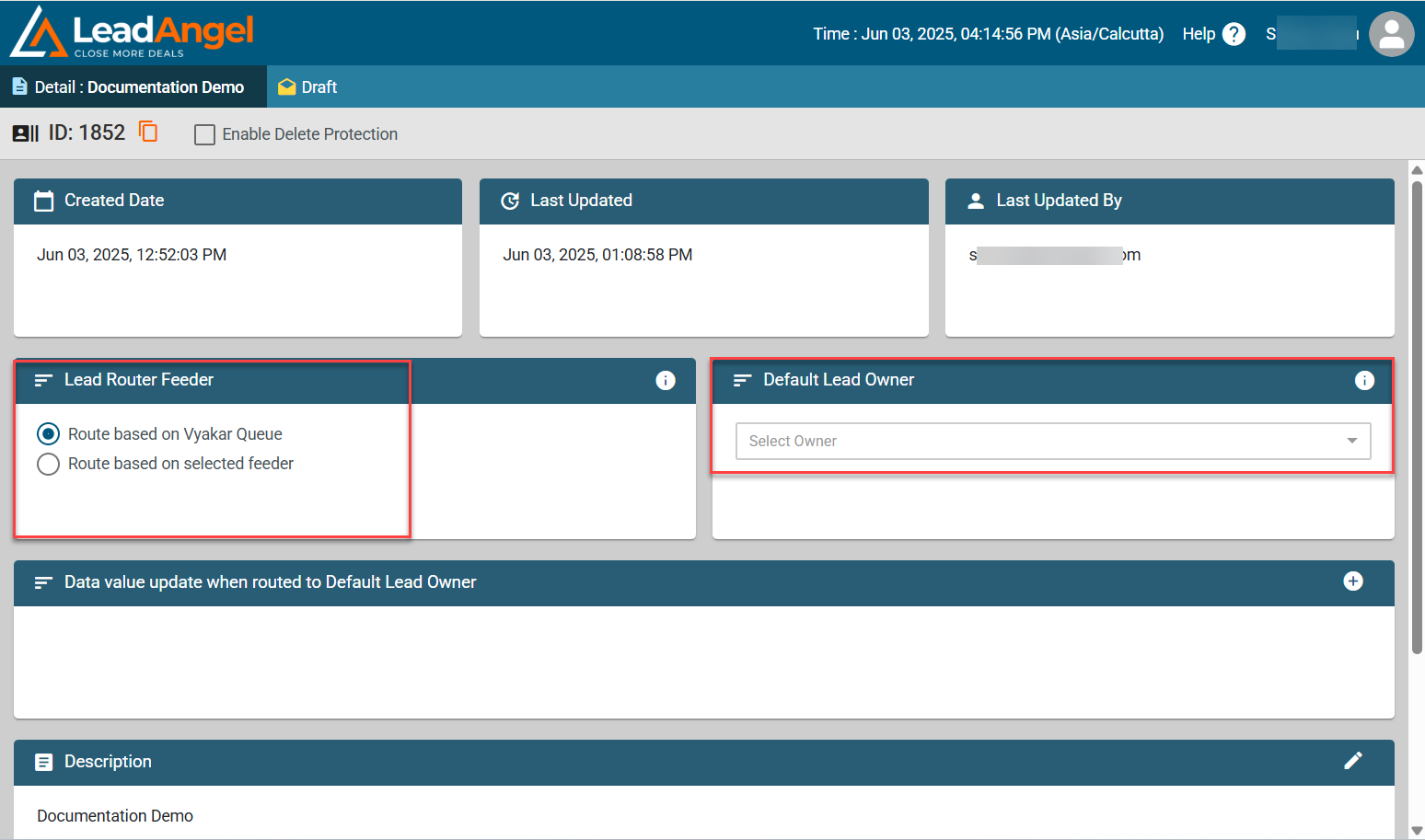
¶ Default Lead Owner
- Select the Sales Rep to assign leads if none of the assignment conditions are met.
¶ Lead Router Feeder Options
You can choose from:
- Route based on Vyakar Queue (default)
- Lead Owner must be set to Vyakar Queue in Salesforce.
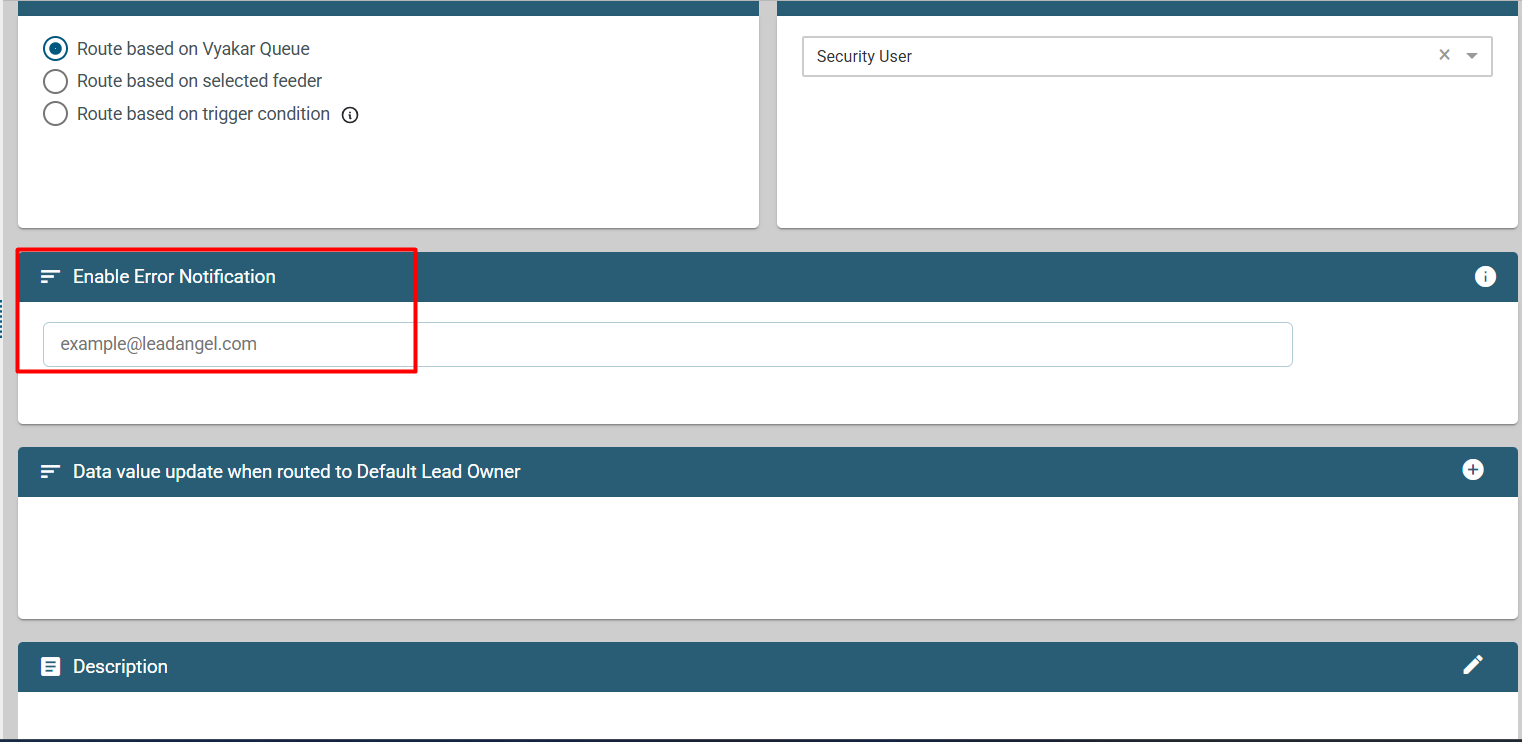
- When users click on the router-based Vyakar queue criteria, the "Enable Error Notification option becomes active, allowing them to configure hourly email notification settings by entering up to 5 email addresses to receive alerts.
- Route based on Selected Feeder
- Use a Boolean field in Salesforce set to True
- Select this field during router setup in LeadAngel
After routing, the lead owner's name will appear in Salesforce.
¶ Data Value Update
- If a lead is assigned to the Default Lead Owner:
- One lead attribute can be updated
- Select the attribute from the dropdown
¶ How do I complete and activate the router?
¶ Step 7: Save and Approve
- Save the assignment block
- Click Approve and click on the Activate button.
Your new Lead Router is now created and active.