¶ What is Visual Lead Flow?
Visual Lead Flow is a flowchart view that shows the path a lead took through the lead router. It helps you understand how the lead moved through each stage or block in the router.
¶ How do I use Visual Lead Flow?
¶ Step 1: Log in
- Go to www.app.leadangel.com
- Click on Lead Management
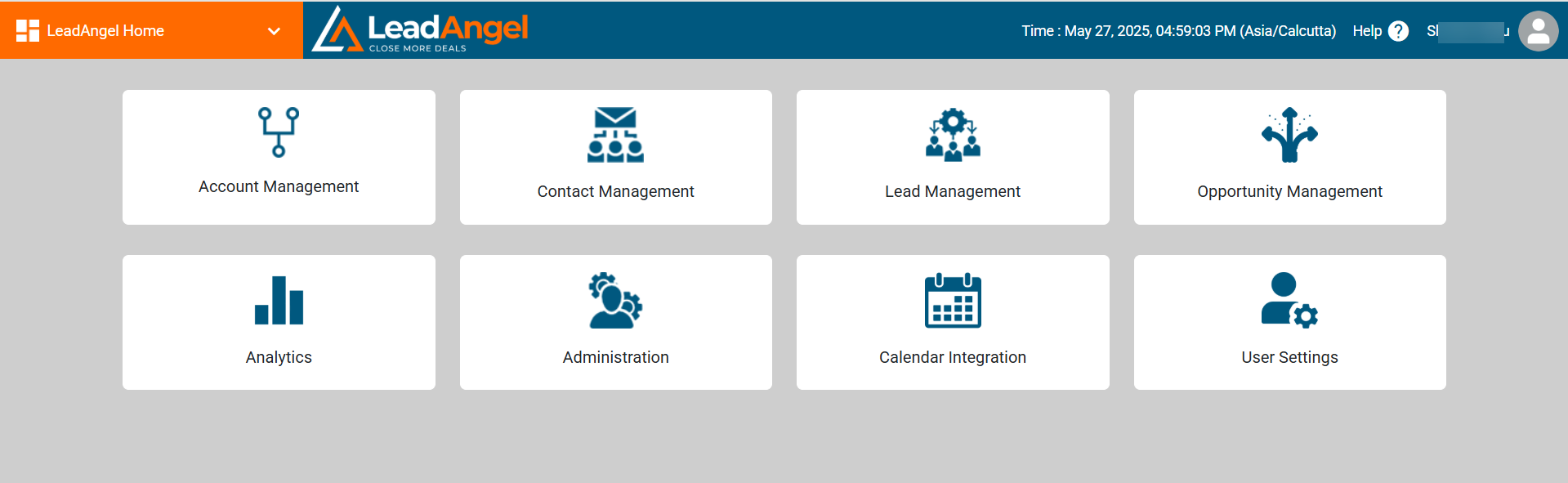
¶ Step 2: Select a Router
- Click on a Lead Router
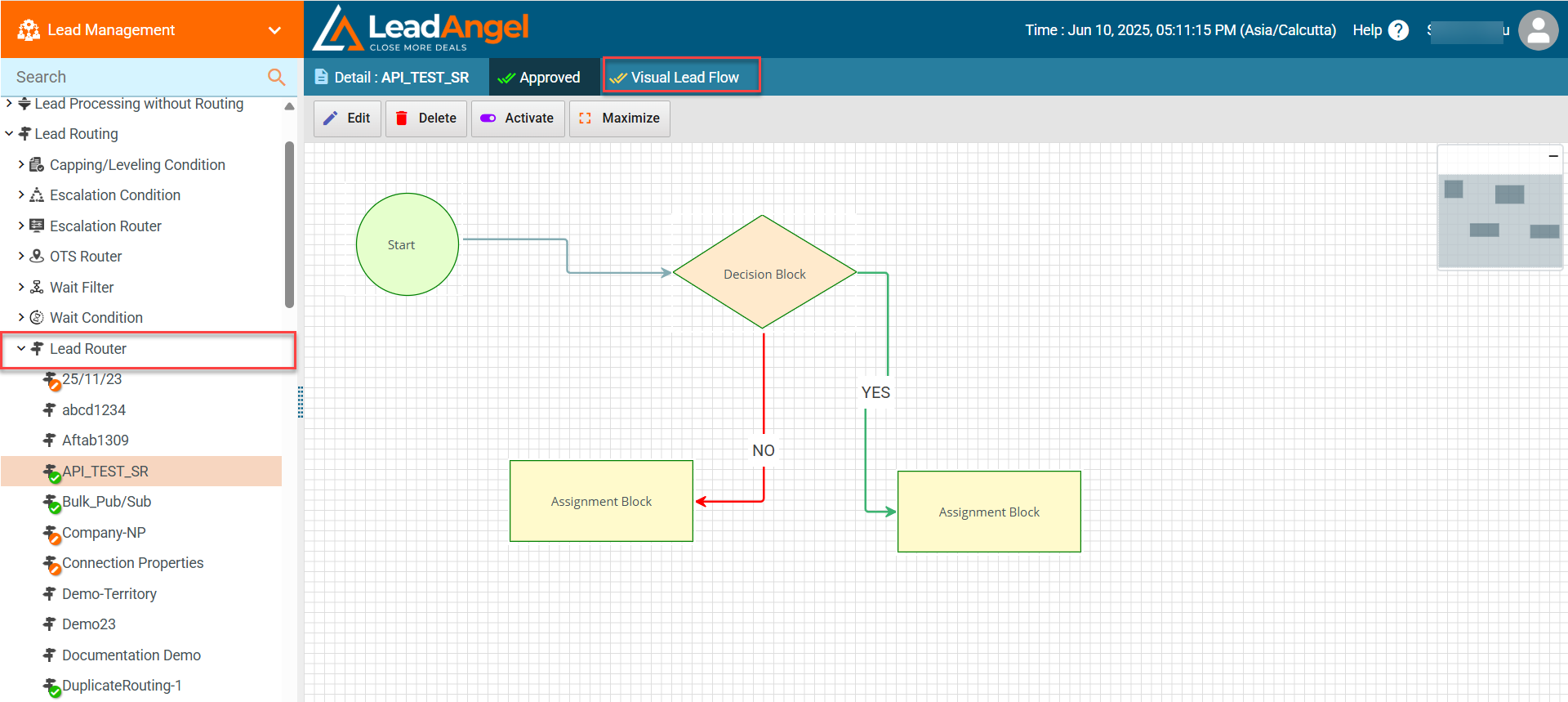
If it's a new router, make sure it is approved before using Visual Lead Flow
¶ Step 3: Open Visual Lead Flow
- Click the Visual Lead Flow tab next to the Draft tab
¶ What do I need to see a lead’s routing flow?
- Enter the Lead ID in the search input box
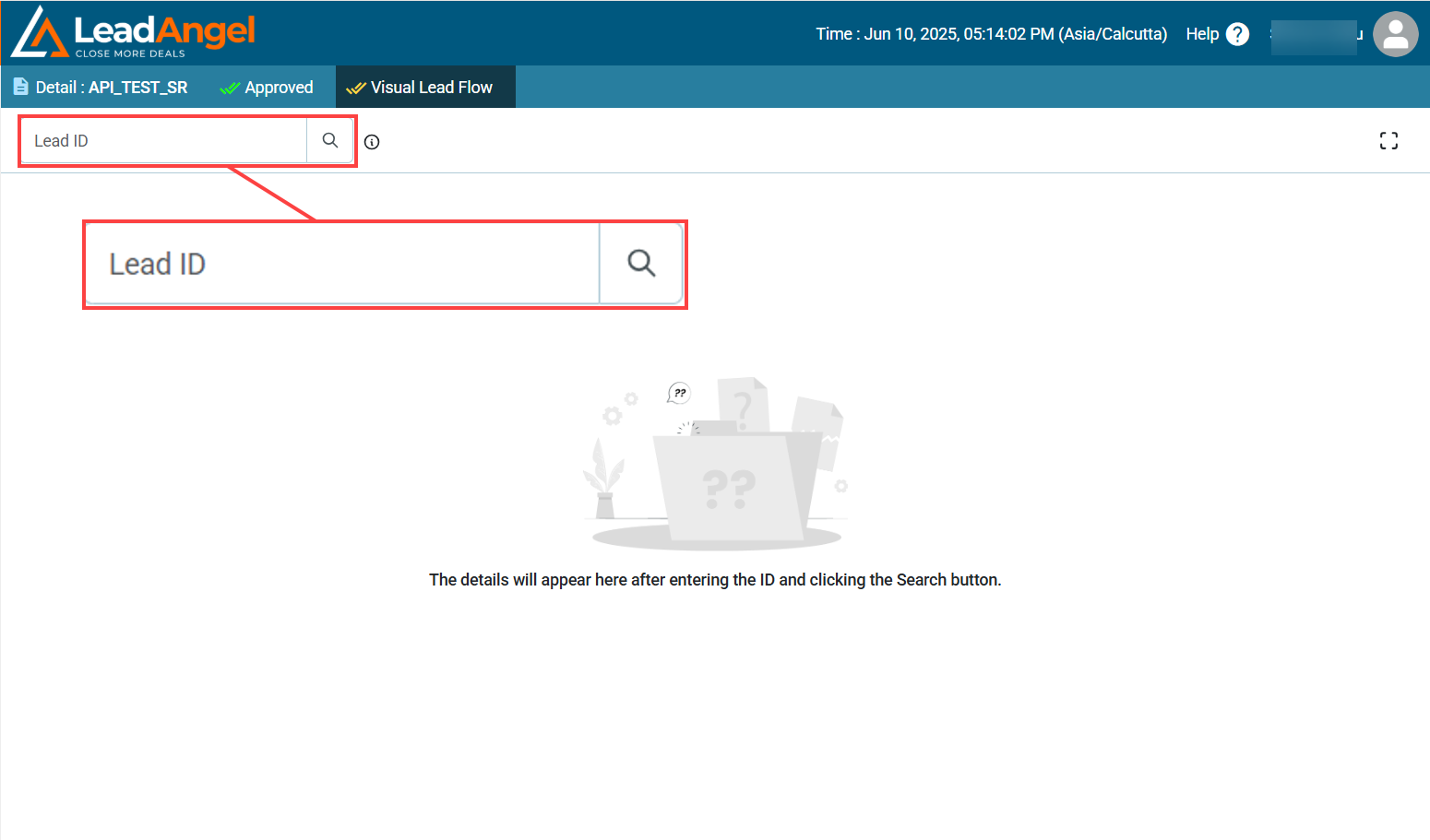
- Click the Search button
If the Lead ID is valid, the full flowchart will appear showing the lead’s Routed status
¶ What insights does Visual Lead Flow provide?
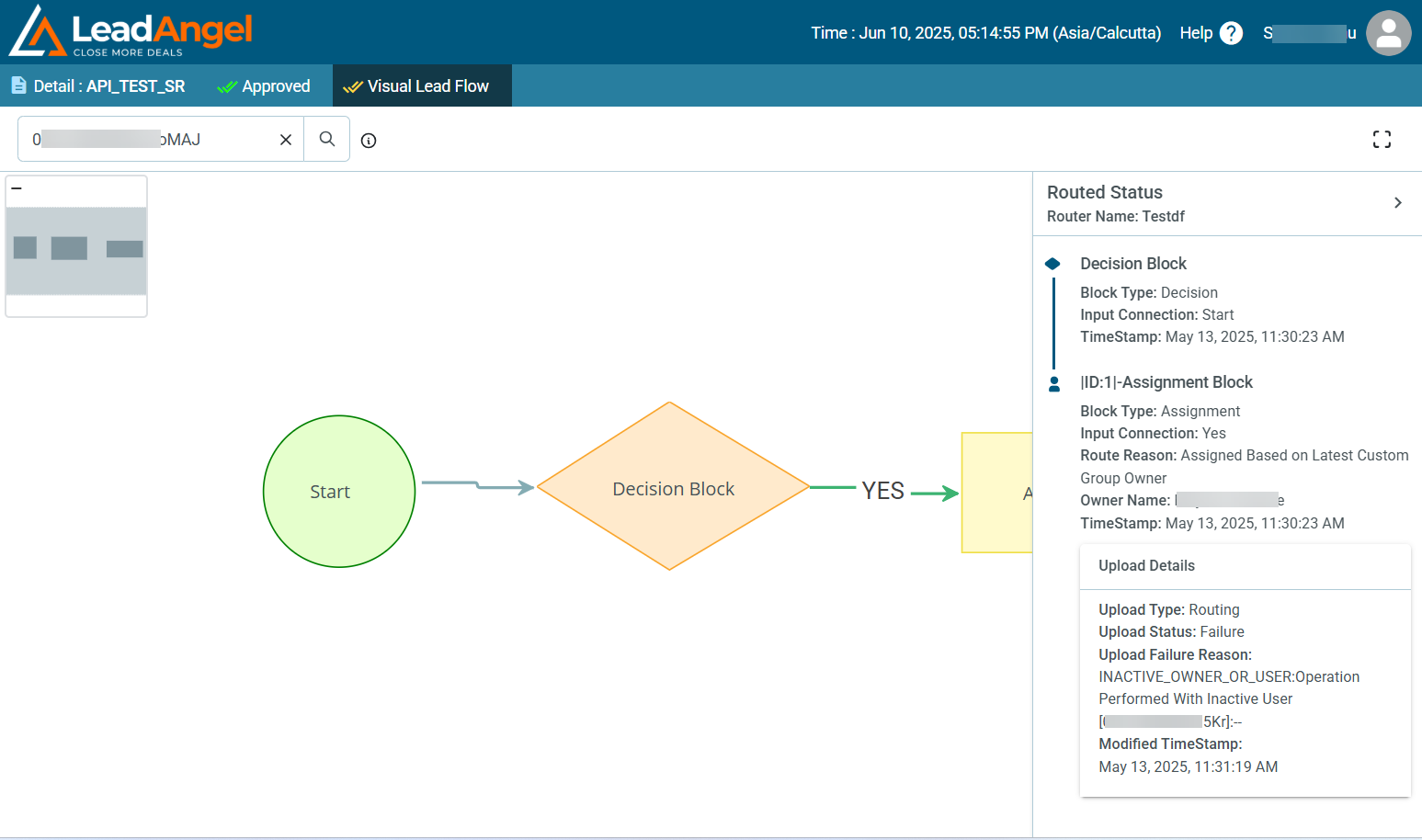
- Displays the actual route taken by a lead
- Shows movement through each assignment block
- Provides status and summary for each approved block
- For updated status
- A red icon indicates that the Assignment Block’s upload status is in “Pending” or “Error”.
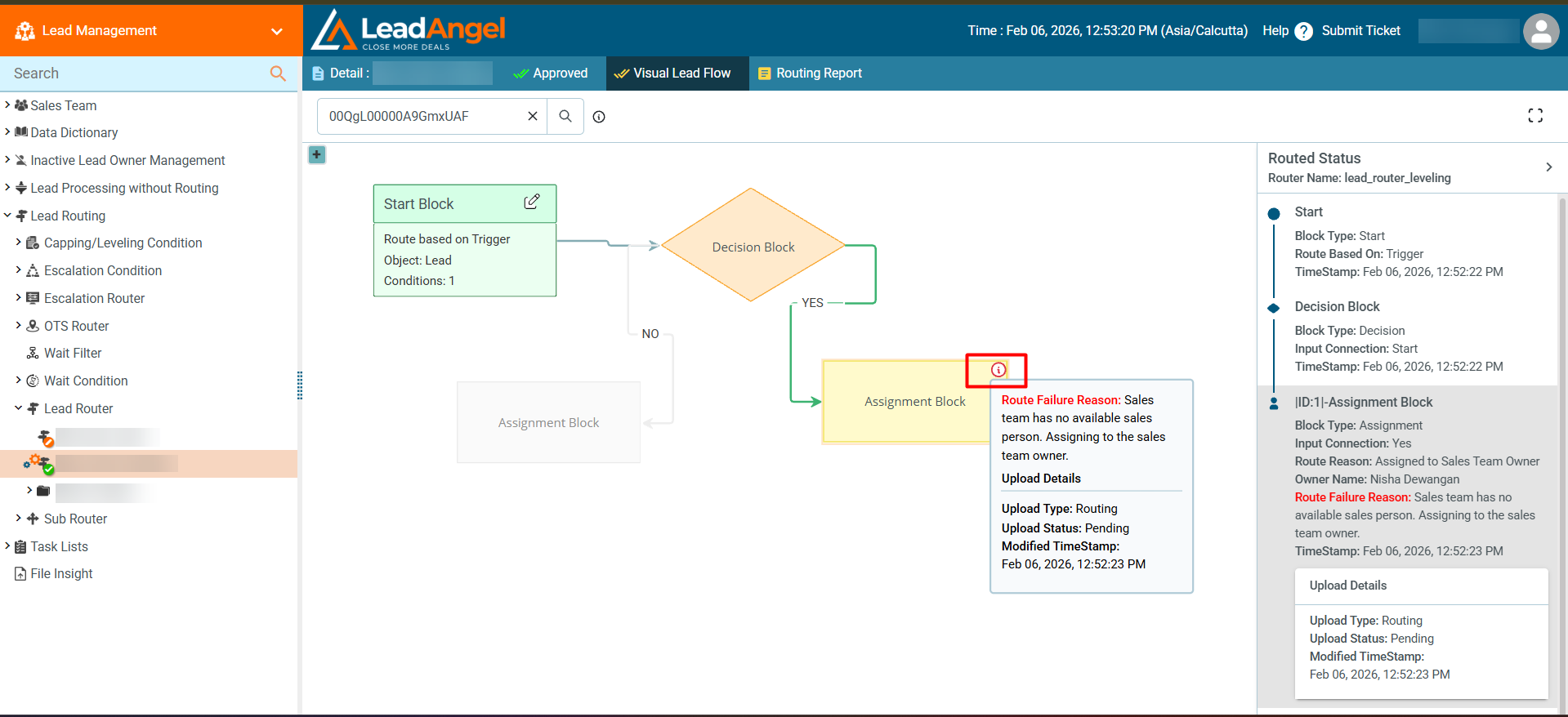
- A green icon indicates that the Assignment Block’s upload status has been successfully completed.
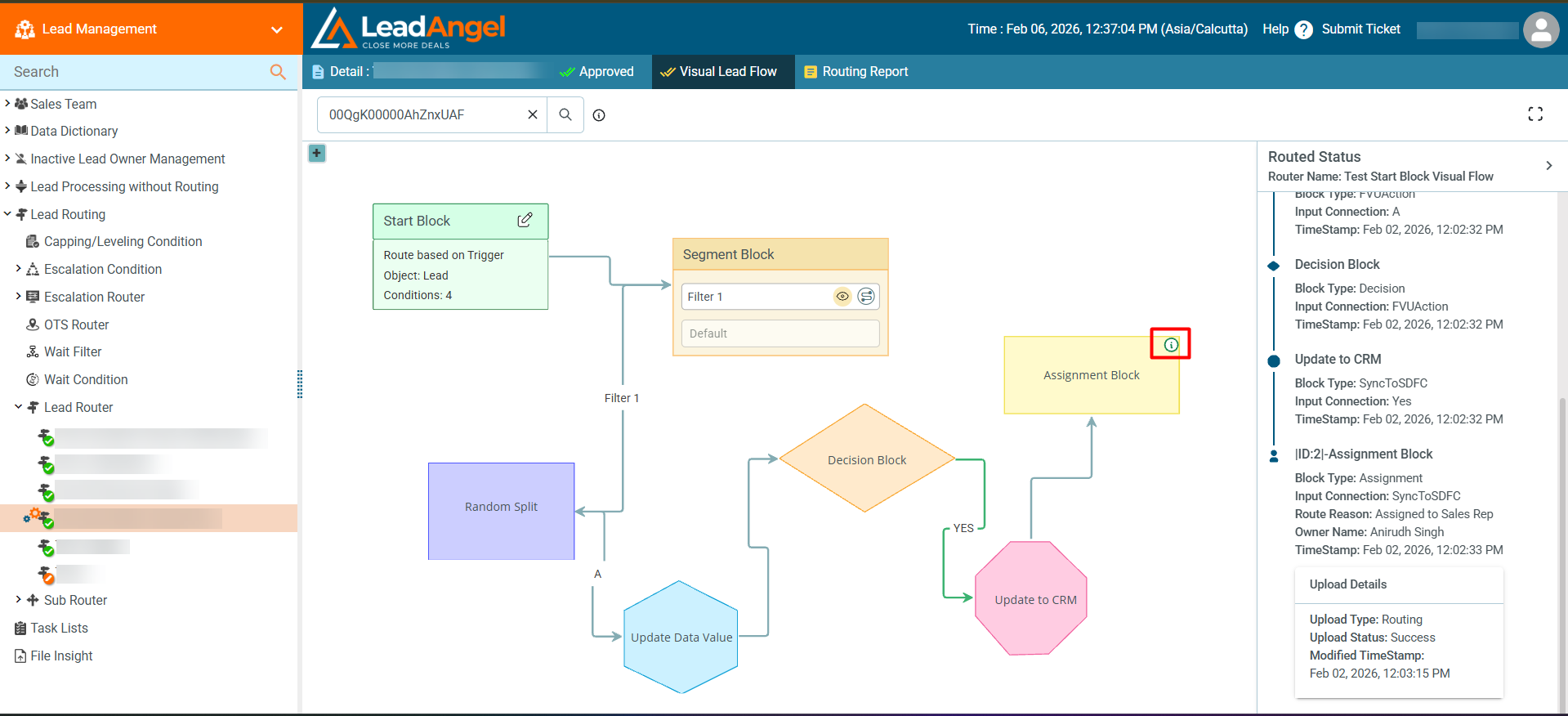
- A green icon indicates that the Assignment Block’s upload status has been successfully completed.
- A red icon indicates that the Assignment Block’s upload status is in “Pending” or “Error”.
- Helps users track the lead’s journey from start to end!
¶ Where can I find more details on the lead’s route?
- Use the Visual Flow Report for a full summary of block-level details and lead status within the system