¶ Queue Management
Each sales team in LeadAngel has its own Queue Management settings. The Queue Owner must be a LeadAngel user, and the configurations apply wherever the sales team is used.
In both Weighted and Round Robin sales teams, availability-based lead assignment is now configured using radio button options.
Only one availability rule can be selected at a time to ensure clear and controlled routing behavior.
The options are displayed in the following order:
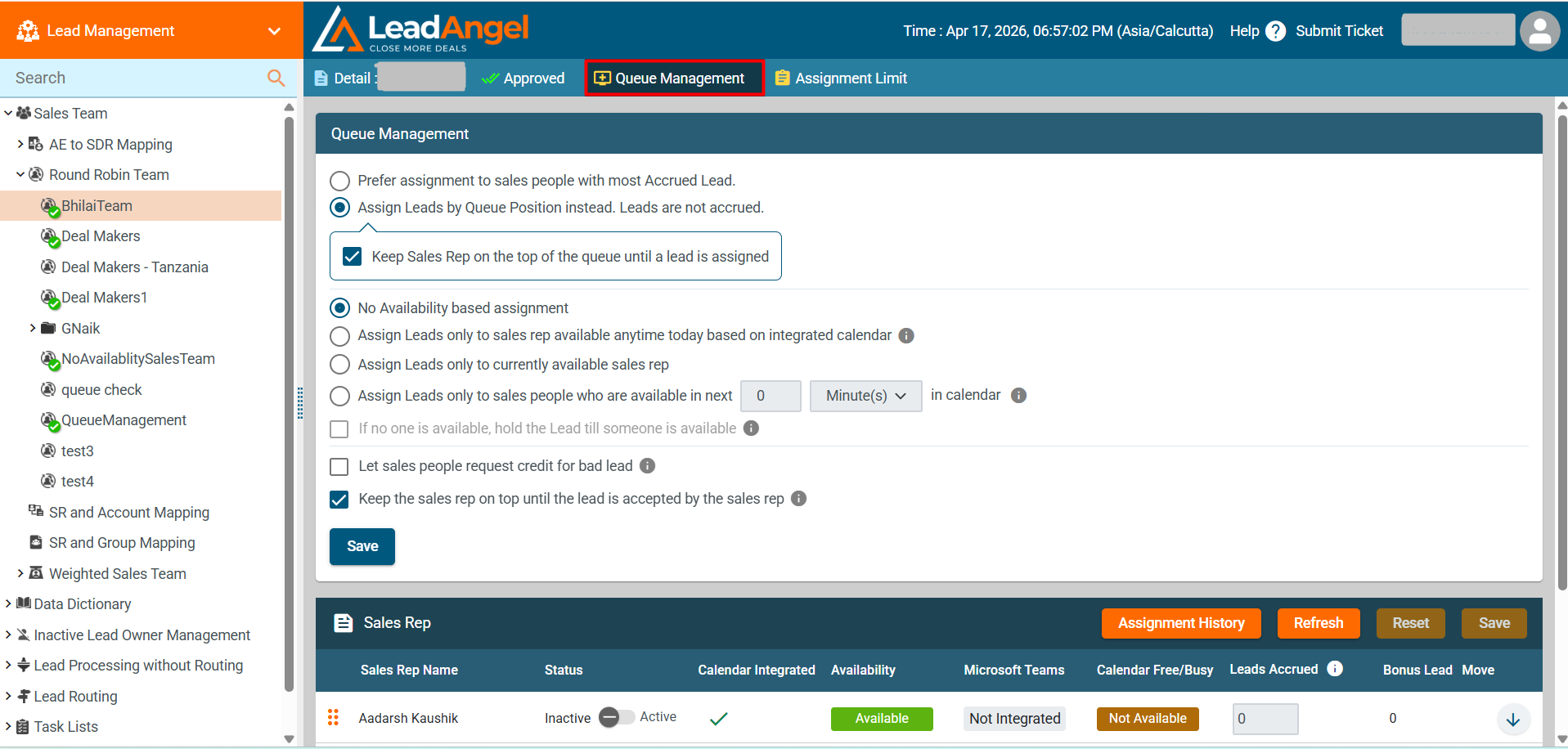
1. Prefer assignment to salespeople with the most Accrued Lead.
¶ Assignment Logic:
- If no sales rep has accrued leads:
- The system assigns leads based on the roster sequence (top-down order).
- The roster moves to the next rep after a lead is assigned.
- If a sales rep has accrued leads:
- The system prioritizes assigning leads to them until their accrued leads are cleared.
- If a sales rep is inactive or unavailable:
- Their accrued lead count increases by one.
- The system assigns the lead to the next available rep.
- This continues until a lead is assigned.
2. Assign Leads by Queue Position instead. Leads are not accrued.
¶ Assignment Logic:
- Leads are assigned in a round-robin method.
- Unavailable reps are skipped during the assignment.
2.a Sub-option: "Keep Sales Rep on the Top of the Queue Until a Lead is Assigned"
¶ Assignment Logic:
- If a rep was inactive/unavailable in the last assignment, they stay at the top.
- They get the next available lead instead of moving down.
- Even though leads aren’t accrued, the rep will stay at the top until they receive a lead.
Note: If all sales reps have bonus count 1 then the lead will be assigned as per the Queue position.
3. No Availability-based assignment (Default)
Leads are assigned using the standard routing logic without checking sales rep availability or calendar status.
This option follows the normal Round Robin or Weighted distribution rules.
Note: If you choose “No Availability-Based Assignment,” the system will not allow you to select “If no one is available, hold the lead until someone is available.”
4. Assign Leads only to sales reps available anytime today based on integrated calendar
The system checks the integrated calendar (Google or Microsoft) and assigns leads only to sales representatives who have availability at any time during the current day.
This ensures the assigned rep has open availability on the same day.
Note: Calendar integration must be enabled for this option to function.
5. Assign Leads Only to Currently Available Sales Reps
Sub-options
5.a Active Working Hours Based on Salesforce Profile
- Leads are assigned only during the rep's defined working hours.
- Prevents lead assignment when the rep is off-duty or unavailable.
- Ensures timely follow-ups by routing leads to active reps.
5.b Calendar-Based Availability (Only if calendar integration is enabled)
- Checks the sales rep's calendar for real-time availability.
- Avoids assigning leads to reps in meetings or on leave.
- Requires calendar integration for automated scheduling.
5.c Active Status-Based Assignment (Checkbox option for RRT and WST teams)
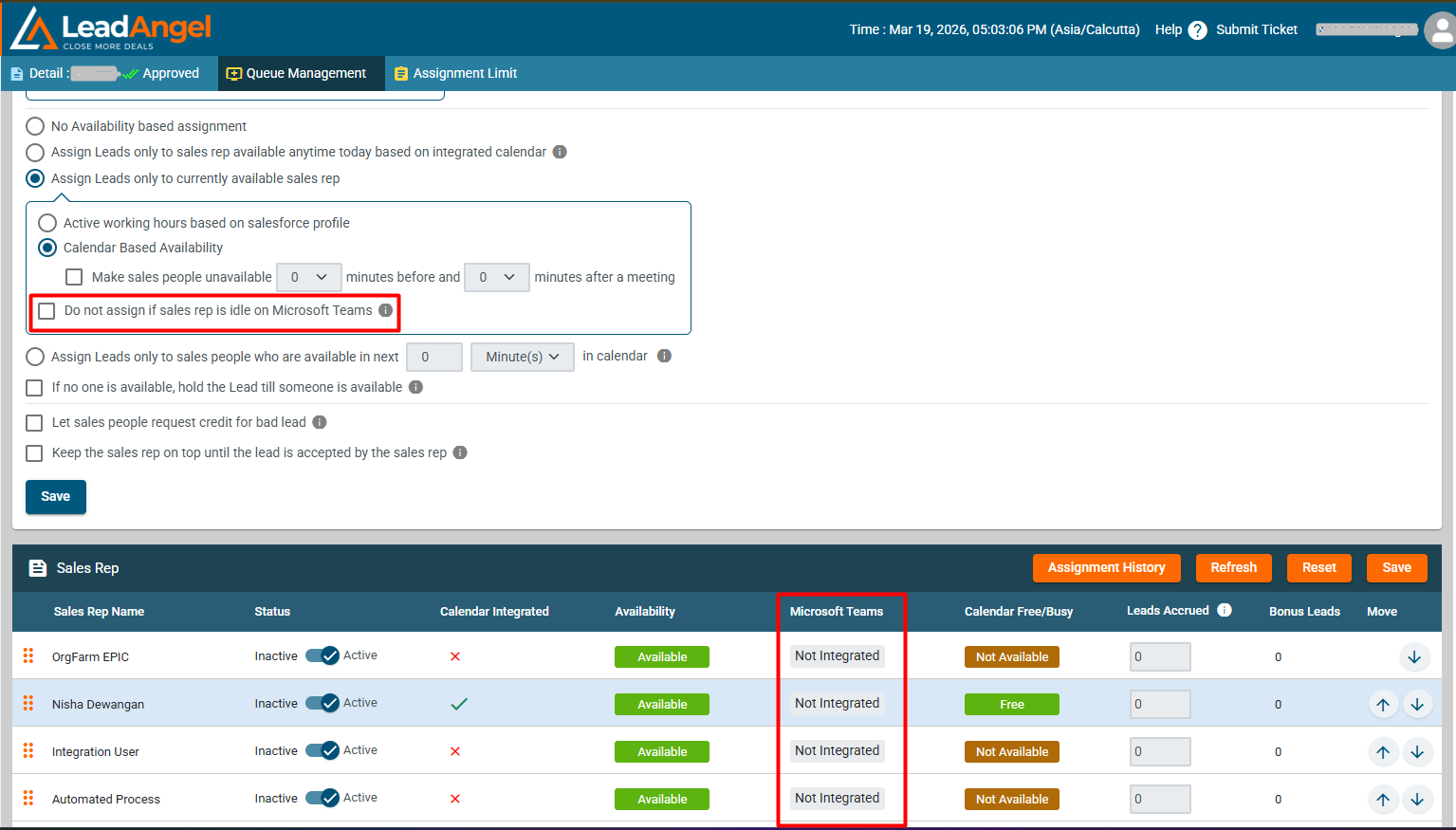
- Verifies rep availability using real-time status from Microsoft Teams.
- Assign leads only to reps marked Active; others are treated as idle.
- If a rep is idle, the lead is routed to the next member in the queue.
6. Assign Leads only to sales reps available within the next < XX > Minutes/Hours in calendar
Leads are assigned only to sales representatives who have availability within a defined upcoming time window.
The time window (XX minutes or hours) is configurable based on business requirements.
This option supports short-term scheduling and time-sensitive lead handling.
Note: This option will function only when calendar integration is enabled.
7. If no one is available, hold the Lead till someone is available
- If no reps are available, leads are placed in a queue.
- Ensures leads are assigned as soon as a rep becomes available.
- Prevents missed opportunities due to unavailability.
8. Let Salespeople Request Credit for Bad Credit
¶ Assignment Logic:
- Allows reps to mark a lead as Bad Lead after accepting it.
- If enabled, a rep can request credit for a bad lead and regain priority in the queue.
Lead Assignment Workflow for Bad Lead:
8.a Initiation & Routing
- Leads are routed based on predefined conditions using the OTS Router.
- The lead is assigned to the top-ranked sales rep.
- Notifications are sent via Slack, Twilio, email, or CRM App Notification.
8.b Lead Acceptance
- Sales reps accept leads via Slack, Twilio, email, or in-app notifications.
- If the Bad Lead - Request Credit feature is enabled, a link appears.
8.c Handling Bad Leads
- Clicking "Bad Lead - Request Credit" moves the rep higher in the queue.
- If not used within the selected time frame, the lead is considered accepted.
9. Keep the sales rep on top until the lead is accepted by the sales rep (Checkbox option only applicable for OTS Router)
¶ Assignment Logic:
9.a Queue Position when a lead is assigned
- If the checkbox is checked and a lead is assigned to the sales rep on top of the queue, his/her queue position will be changed even if he/she doesn't accepts/rejects the lead.
- In this case the next lead will also be assigned to the same sales rep with bonus count one.
9.b Bonus Count Increases for Inaction
- If the rep neither accepts nor rejects the lead, their bonus count increases by 1.
9.c Future Routing Adjusted Based on Bonus Count
- The next lead routing cycle considers the updated bonus count, affecting the rep’s priority in future lead assignments.
¶ Sales team actions:
You can see Round Robin team member details only if it is being used in any active router. It will appear in the following way:
- Sales Rep Name: Sales Rep name is the salesperson’s full name in the CRM.
- Status: The users with role, standard user, admin, and Queue Owner (just for the queue where she/he is the owner) can change the status to active/inactive. Anyone marked as inactive will be temporarily suspended from Round Robin assignments. If any changes done in status here will not be reflected in the CRM.
- Calendar Integrated: If the LeadAngel calendar is integrated, then based on calendar availability the system will show if the Sales rep is available or not. For calendar integration sales rep email on CRM and LeadAngel calendar integrated email must match.
- Availability: It shows whether the sales rep is available or not during the time of lead assignment based on queue management configuration.
- Calendar Free/Busy: It shows whether the sales rep is free, busy, or not available during the time of lead assignment based on their calendar availability.
- Free: If a sales rep is not in a meeting when the lead is assigned to him/her.
- Busy: If a sales rep is already in a meeting when the lead is assigned to him/her.
- Not Available: When a sales rep has not integrated his calendar, in some cases, if the system is unable to fetch the calendar data it will show not available for that sales rep.
- Leads Accrued: It indicates the number of leads accrued to the salespeople. Whenever the Sales reps become available, they will get the past due leads (when their Queue Position reaches the top). Lead accrual will work only on the lead router.
- Bonus Leads: It shows the bonus lead counts of sales reps when the leads are assigned to them through the web-to-lead form if a user does not schedule a meeting within the set assignment rollback time. The app will consider it as a bonus lead for the sales rep.
- Move: You can change the queue position of the sales rep.
- You may use the left-hand side drag icon to drag the sales rep to change their sales position.
- Assignment History: It shows the list of sales reps with their detailed assignment history report.
- Reset: The queue can be manually reset by clicking on the reset button. Please note that ifa sales team has been modified, it resets itself.
- Boosting a Sales Rep: Boosting moves a sales rep to the top of the queue. Only one rep can be boosted at a time. Boosted reps remain at the top until assigned a leadAfter assignment, they move to the bottom
- Assignment History: Displays a full log of lead assignments per sales rep
- Refresh: Updates and reloads the queue order.