¶ OKTA SAML Configuration
¶ Steps Overview
- Create SAML App
- Customize SAML App
- Configure SAML App
- SAML Integration Feedback
- Copy SAML Configuration from OKTA
- Assign user to the App
- Configure LeadAngel Application
¶ 1. Create SAML App
The first step is to create a custom SAML App in OKTA for LeadAngel.
In the OKTA Admin Console, go to:
Applications > Applications
Click Create App Integration.
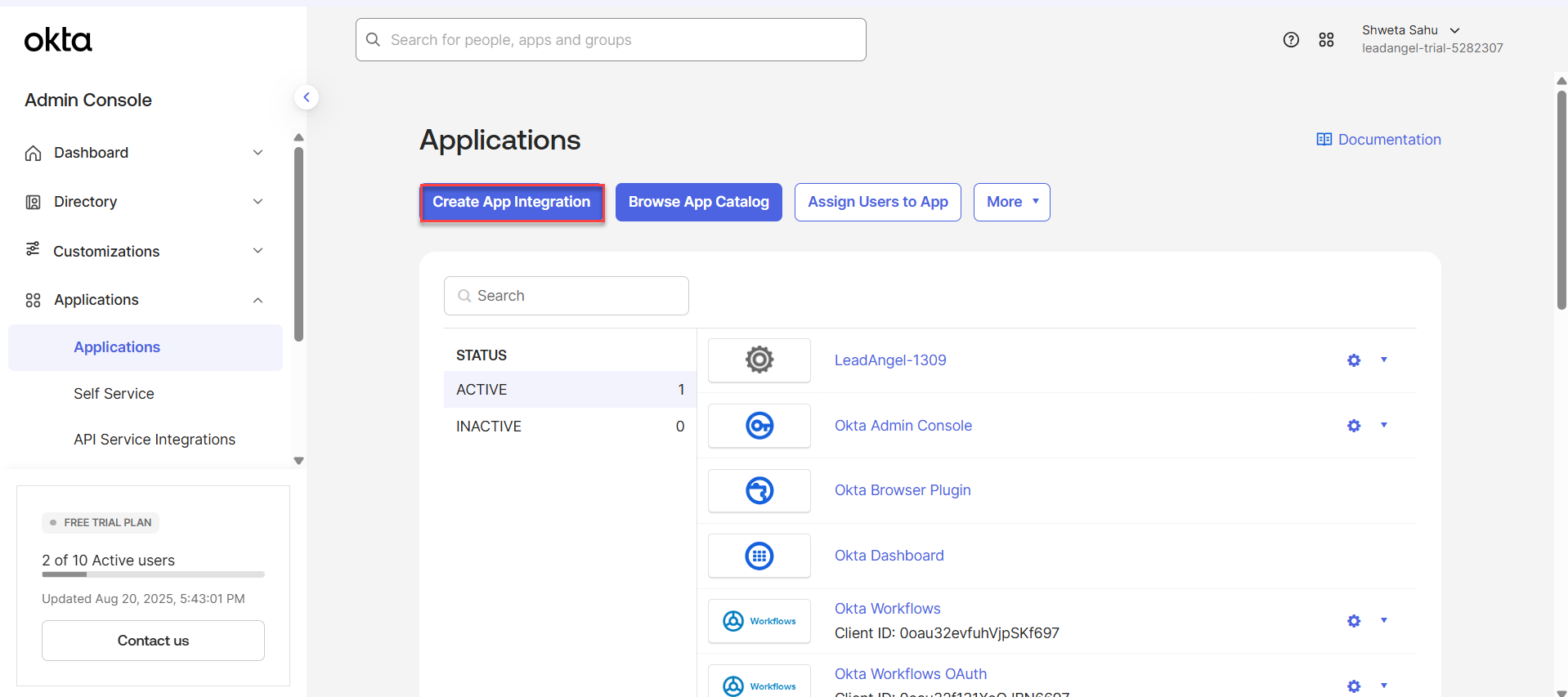
- Select SAML 2.0 as the Sign-on method and click Next.
- Assign Users/Groups as desired.
¶ 2. Customize SAML App
Next, configure the app details.
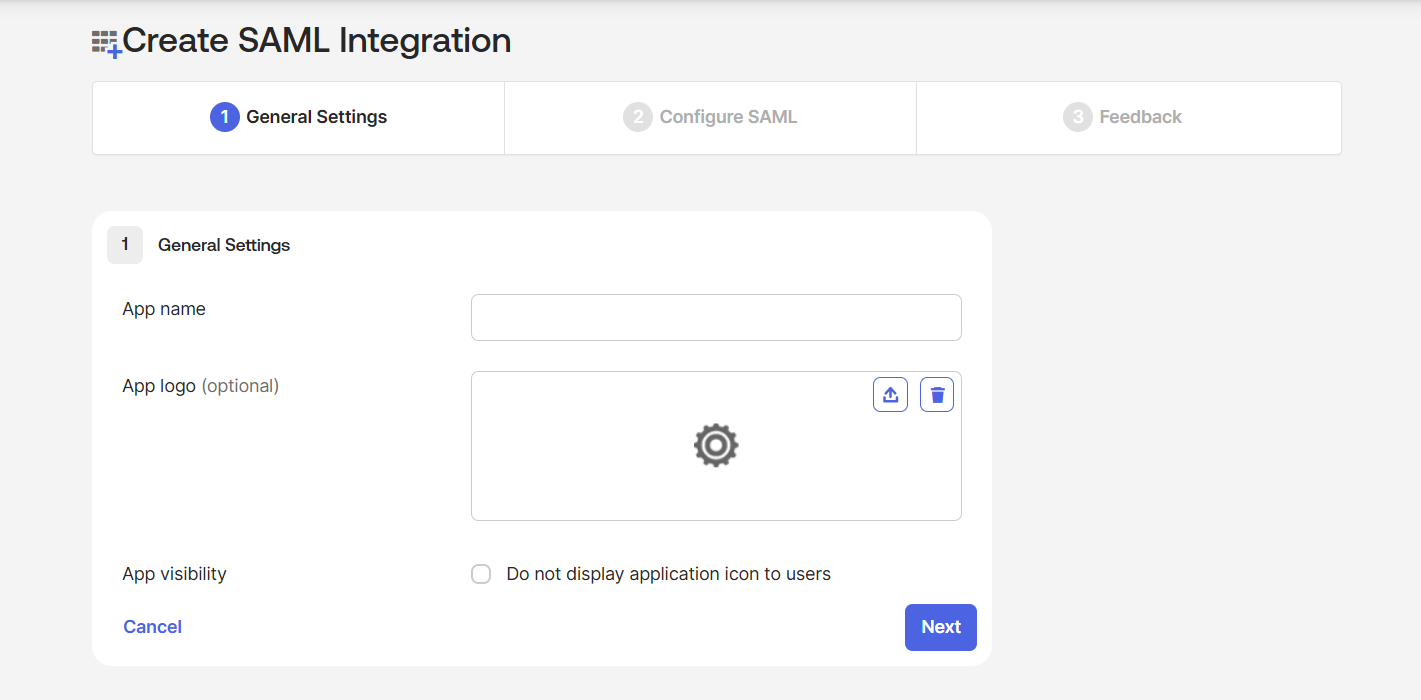
- App name: Specify a name (e.g., LeadAngel, LeadAngel Sandbox, etc.) - App logo: Add a logo to accompany your integration in the Okta org.
- LeadAngel Logo (JPG)
- LeadAngel Logo (PNG)
- LeadAngel Favicon
- App visibility: Choose whether to hide your integration from your end users' homepage.
¶ 3. Configure SAML App
A SAML 2.0 configuration requires a combination of information from both your org (OKTA) and the LeadAngel app.
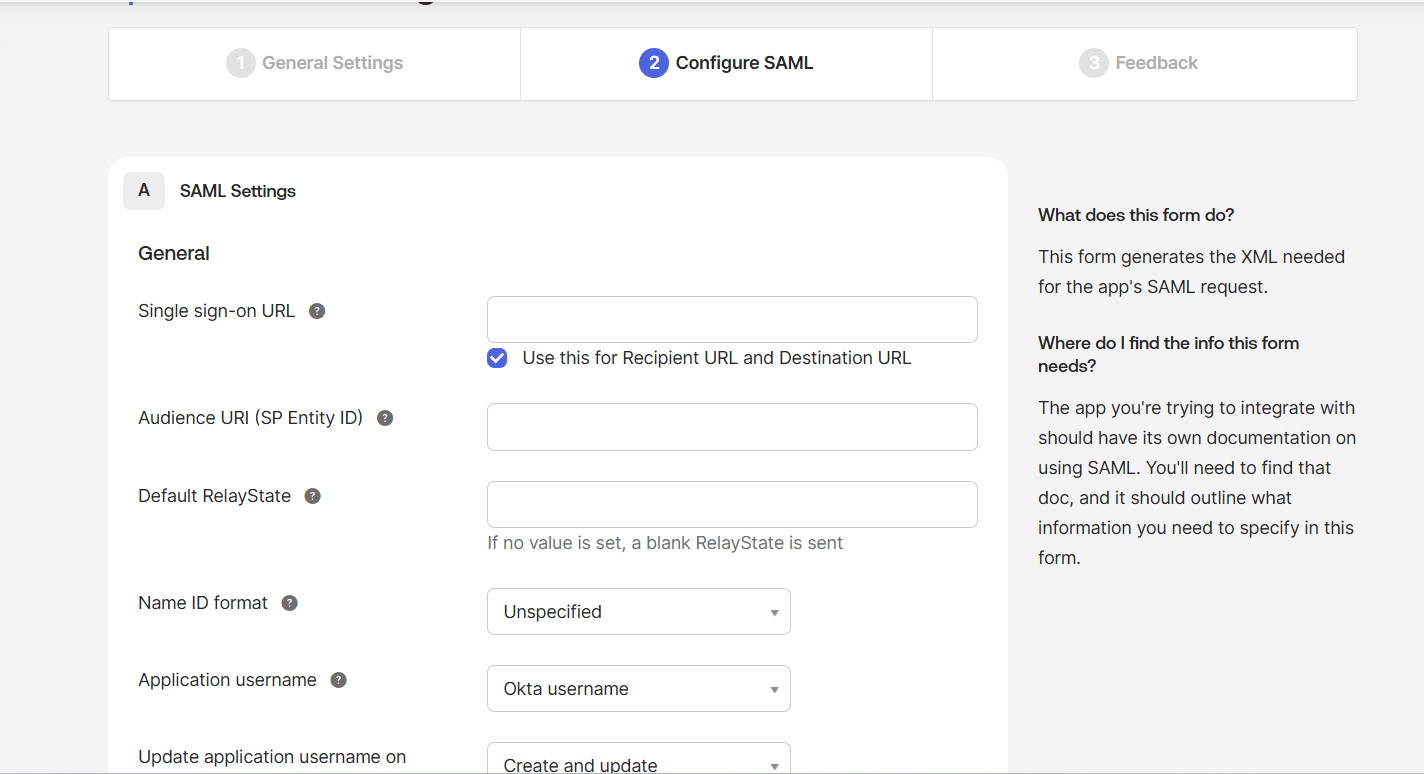
Single sign-on URL:
The location to send the SAML assertion using a POST operation.
Enter:
https://app.leadangel.com/uiapi/sso/okta
- Uncheck “Use this for Recipient URL and Destination URL” and enter:
- Recipient URL:
https://app.leadangel.com/uiapi/sso/authenticated - Destination URL:
https://app.leadangel.com/uiapi/sso/authenticated
- Recipient URL:
Audience URI (SP Entity ID): Select based on your environment:
- Production:
https://app.leadangel.com/uiapi/production - Sandbox:
https://app.leadangel.com/uiapi/sandbox - Test:
https://app.leadangel.com/uiapi/test
Other settings:
- Default RelayState: Leave blank
- Name ID format: Select EmailAddress
- Application username: Select Email
- Update application username on: Select Create and Update
Click Show advanced settings:
- Assertion Encryption: Select Unencrypted
- Attribute Statements (optional):
- Name:
clientid(case sensitive) - Name Format: Basic
- Value: Your client ID (e.g.,
1001)
- Name:
Click Next.
- Group Attribute Statements: Leave blank.
¶ 4. SAML Integration Feedback
- Select I'm an Okta customer adding an internal app.
- If prompted, provide any other feedback.
- Click Finish.
¶ 5. Copy SAML Configuration from OKTA
After creation of the SAML 2.0 app, it will appear in the OKTA Application dashboard.
Go to Sign On → Click View SAML setup instructions.
Copy the following to configure in the LeadAngel application:
- Identity Provider Single Sign On URL
- Identity Provider Issuer
- Certificate file
¶ 6. Assign Yourself to the App
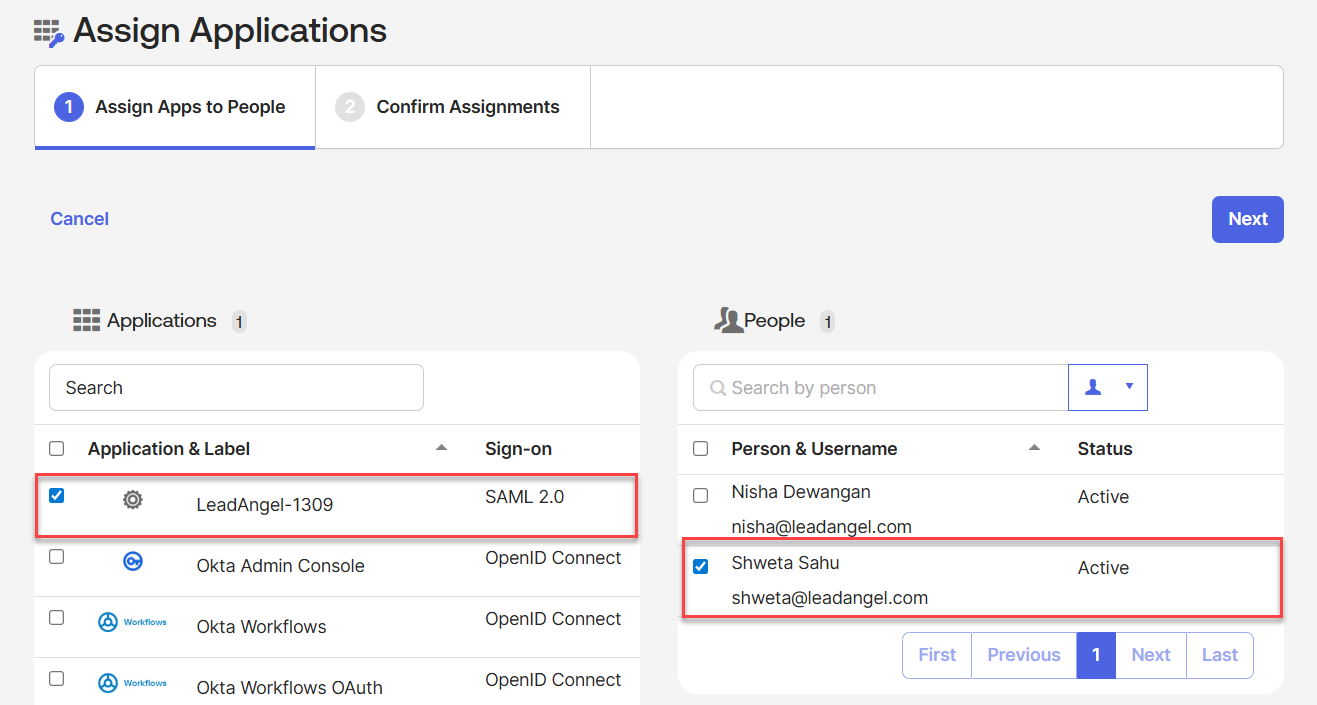
After creating the app, you must first assign yourself as a user.
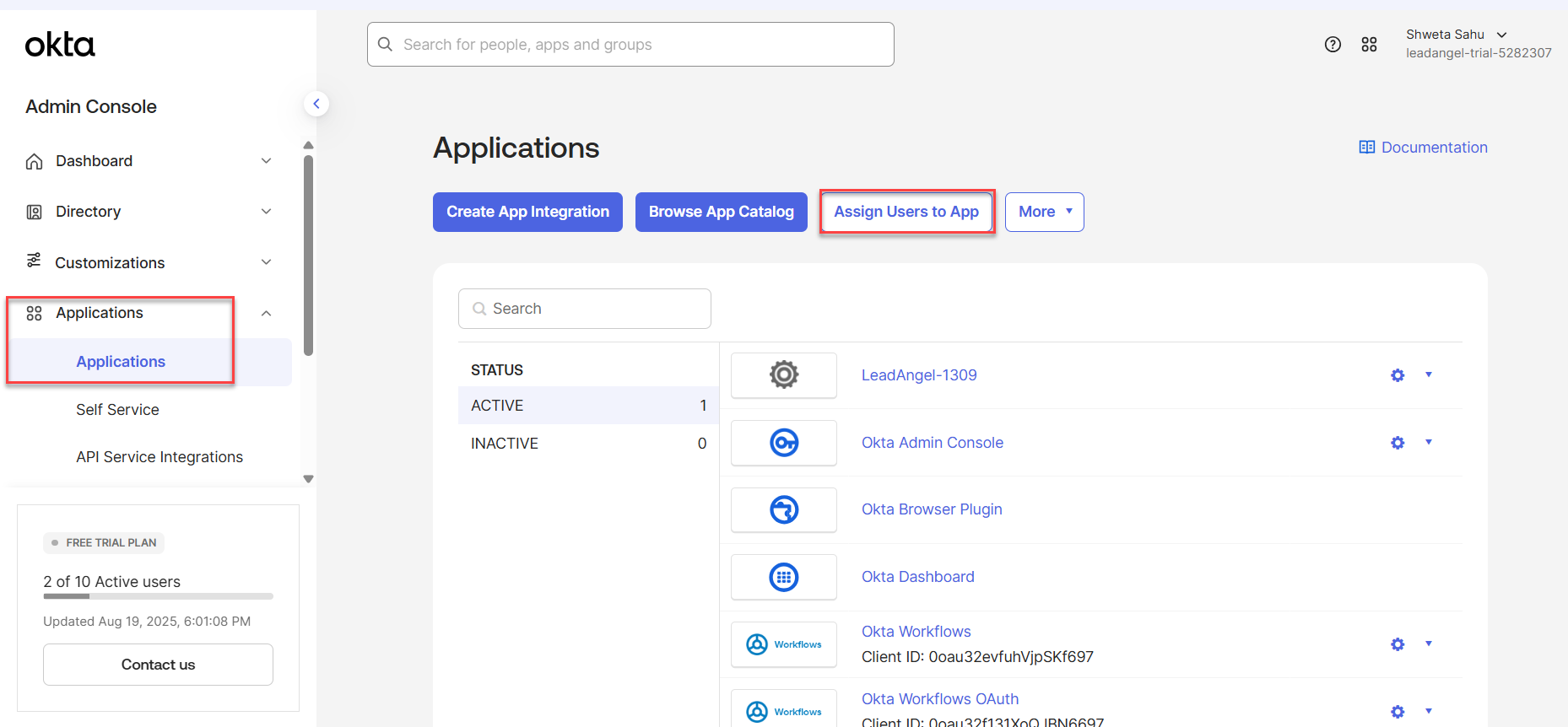
Go to the created app → Assignments → Assign Users to App → Assign to People → Select the application and your account under "People" → Click Next and confirm assignment.
¶ Assign Additional Users (Optional)
If other team members also need access, in the Admin console, go to the Directory → People → Add person → Add details →Save.
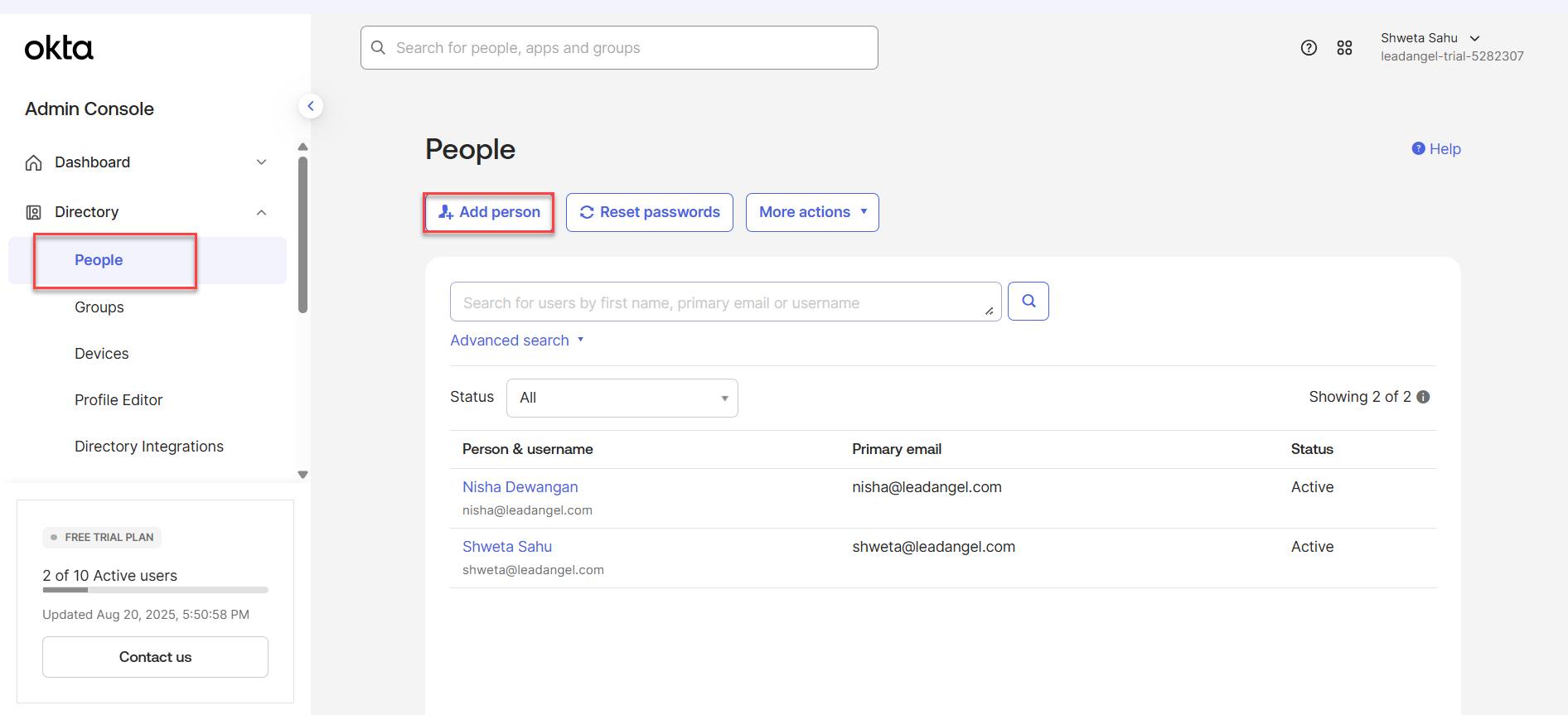
Added user will get a welcome email to Activate Okta Account, once activate, the user name will appear under the People list in the Assign to People page.
Select the users you want to assign and save.
¶ 7. Configure LeadAngel Application
In the LeadAngel application:
- Go to Administration → Integrations → SAML Configuration.
- Enter:
- SAML Provider Entity ID: Identity Provider Issuer from OKTA
- Single Sign On URL: Identity Provider Single Sign On URL from OKTA
- Logout URL:
https://app.leadangel.com/uiapi/sso/logout - Insert the certificate copied from OKTA. Remove the lines containing:
-----BEGIN CERTIFICATE----- -----END CERTIFICATE----- - Select the correct instance (Production, Sandbox, or Test) as set up in OKTA.
It might take up to 5 minutes for the certificate and signature to propagate.