The Microsoft Teams Notification Template in LeadAngel enables users to send automated notifications to specific recipients during routing actions like lead assignment. This feature helps teams stay aligned and respond promptly.
¶ Steps to Create a New Microsoft Teams Template
Go to:
Administration > Notifications > Microsoft Teams > + New Microsoft Teams Template
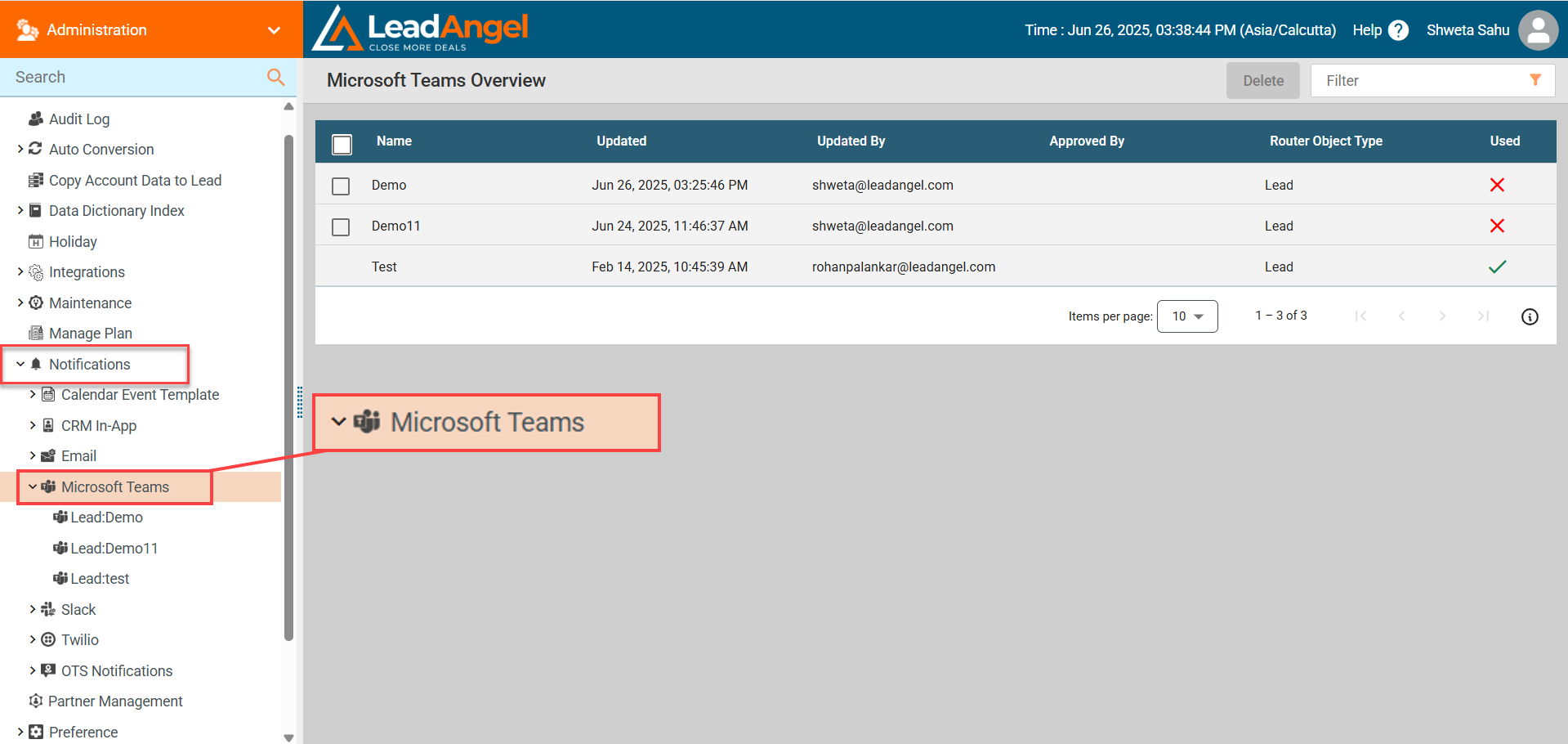
¶ 1. Click on “+ New Microsoft Teams Template”
Find this option under the Microsoft Teams section on the left-hand menu.
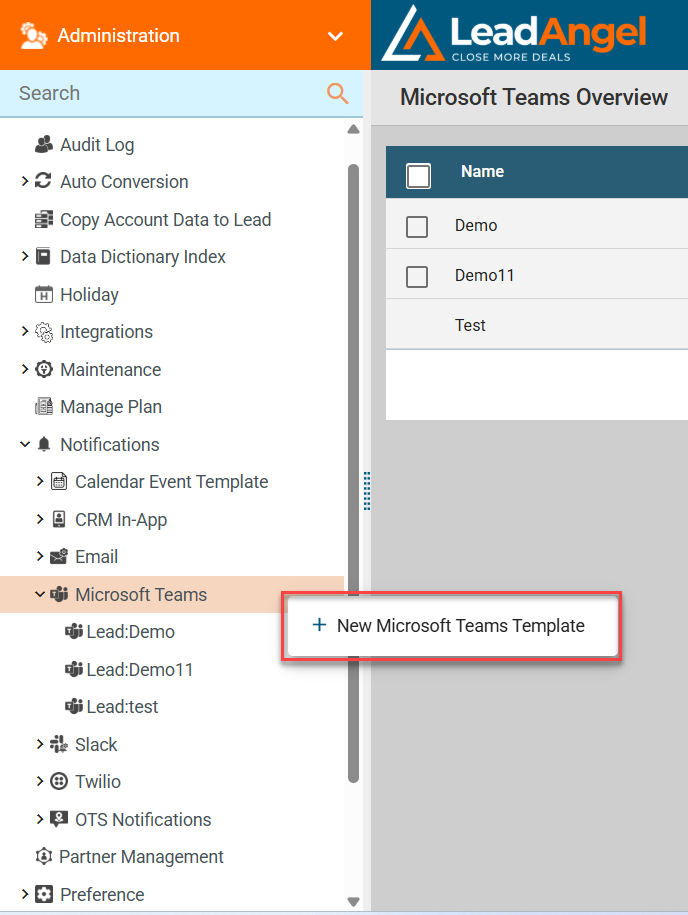
¶ 2. Enter Template Details
A popup will appear asking for:
- Name: Enter a unique template name (up to 50 characters).
- Router Type: Select an object type from the dropdown (e.g.,
Lead).
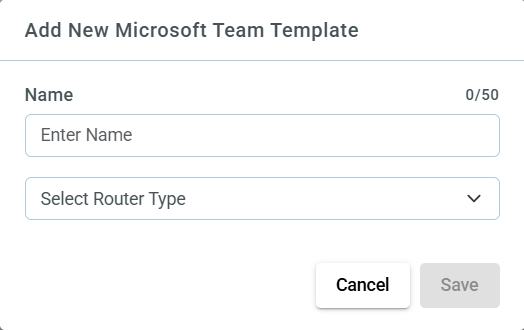
Click Save to proceed.
¶ 3. Configure the Template
You will be redirected to a detailed setup screen.
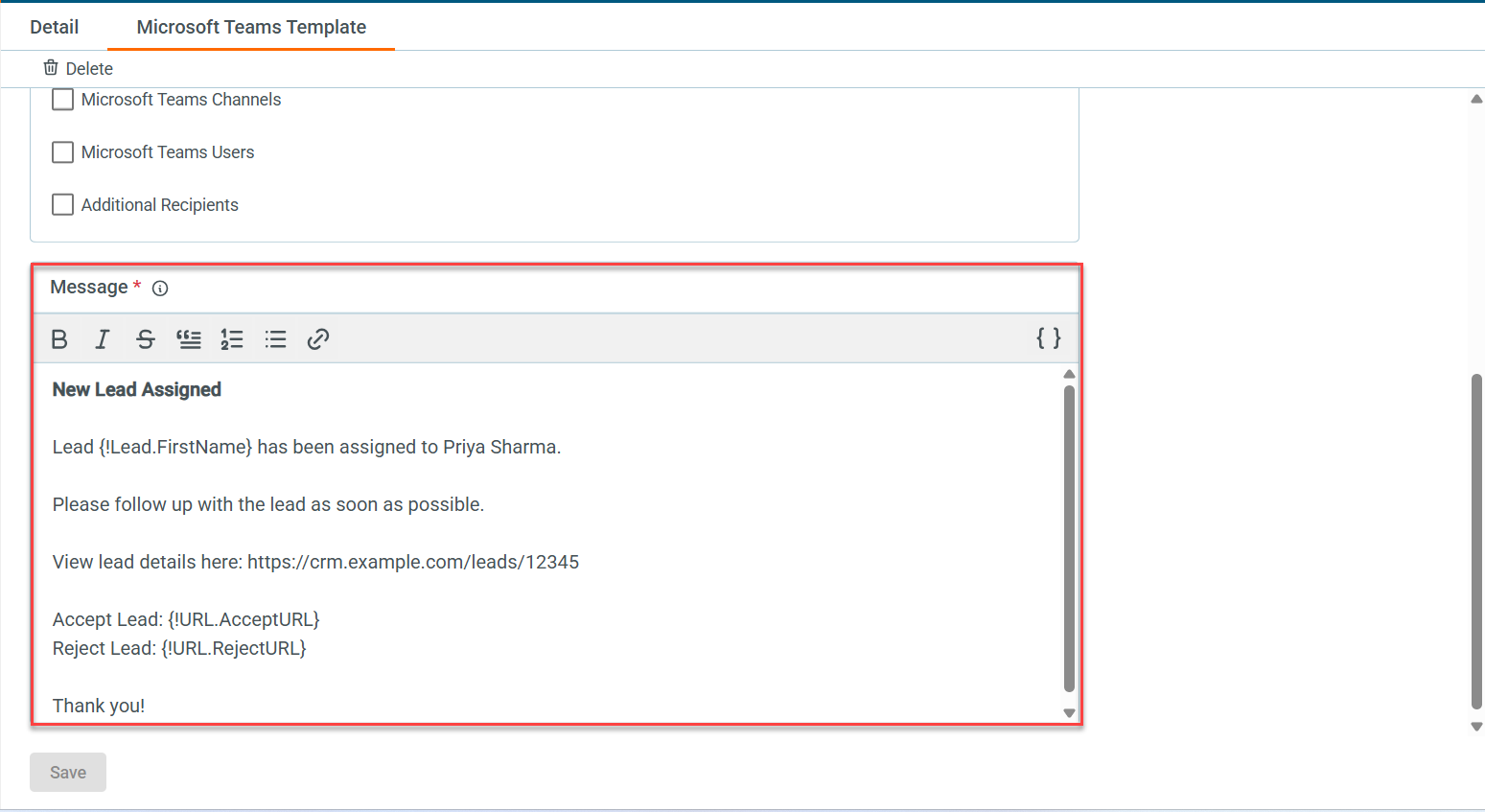
¶ Message
- Use the rich text editor to write your notification message.
- You can apply formatting: Bold, Italic, bullet points, and hyperlinks.
- Use
{}to insert dynamic tokens (e.g.,{LeadName},{OwnerEmail}).
¶ Recipient To – Select one or more recipient types:
- Lead Owner
- Account Owner
- Lead Owner Mapped SDR
- Account Owner Mapped SDR
- Account Team
- Notify based on the lookup field on Account
- Notify based on the lookup field on Lead
- OTS Broadcast Notification Recipients
- Microsoft Teams Channels
- Microsoft Teams Users
- Additional Recipients
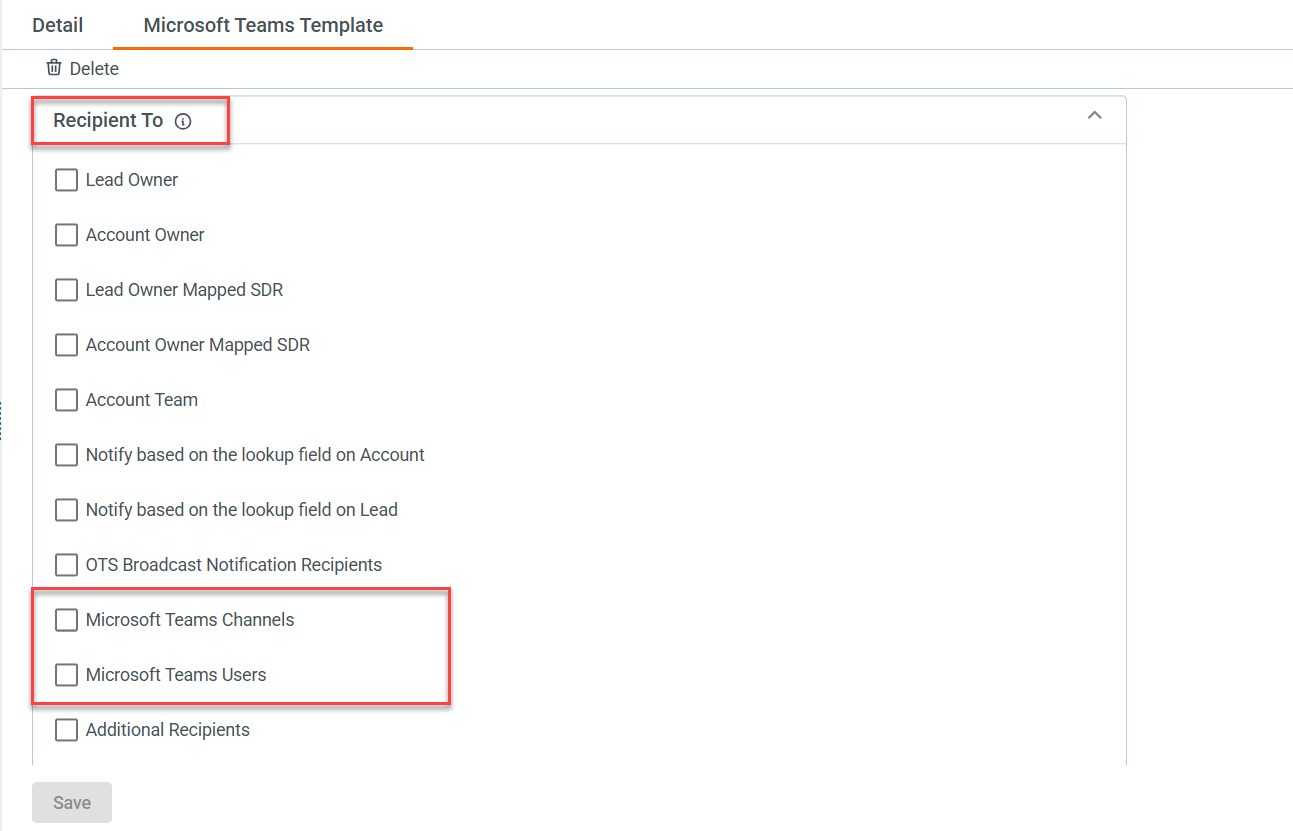
Select Microsoft Teams Channels and Microsoft Teams Users from the dropdown list. The list can be updated via refresh button
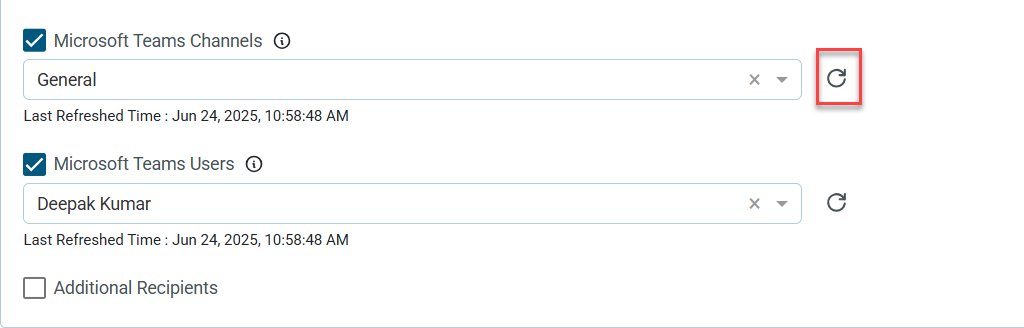
You can check multiple options depending on who should receive the notification.
¶ 4. Save the Template
Once configuration is complete, click the Save button at the bottom.