¶ There are three preferences settings:
- Data cleanup Preferences: Fixing errors and other issues in the data sets.
In data cleanup preferences the settings are applied for all the leads and it will reflect in Salesforce. (It's not necessary to go to the lead router). - Dedupe Flagging Preferences: Identify and eliminate duplicate leads within a specified set of data.
In dedupe flagging preferences the settings will be applied only to the leads which are qualifying for the routing. It will not affect Salesforce. - Routing Preferences: Assigning new potential lead/ account/ contact/ opportunity to available sales rep.
¶ 1. Data Cleanup Preferences
“Focus the efforts of your sales reps by automatically giving them the cleanest, most actionable, and most relevant data.”
Data cleanup allows you to fix incorrect or duplicate data. Through data cleanup preferences you can:
- Merge duplicate leads
- Merge duplicate contacts
- Merge leads against matching contacts
- Convert leads into contacts if a matching account is found
- Convert leads into contacts and accounts if no matching account is found
¶ 2. Dedupe Flagging Preferences
A duplicate lead or a lead dedupe is when the prospect or customer appears more than once in your CRM’s database.
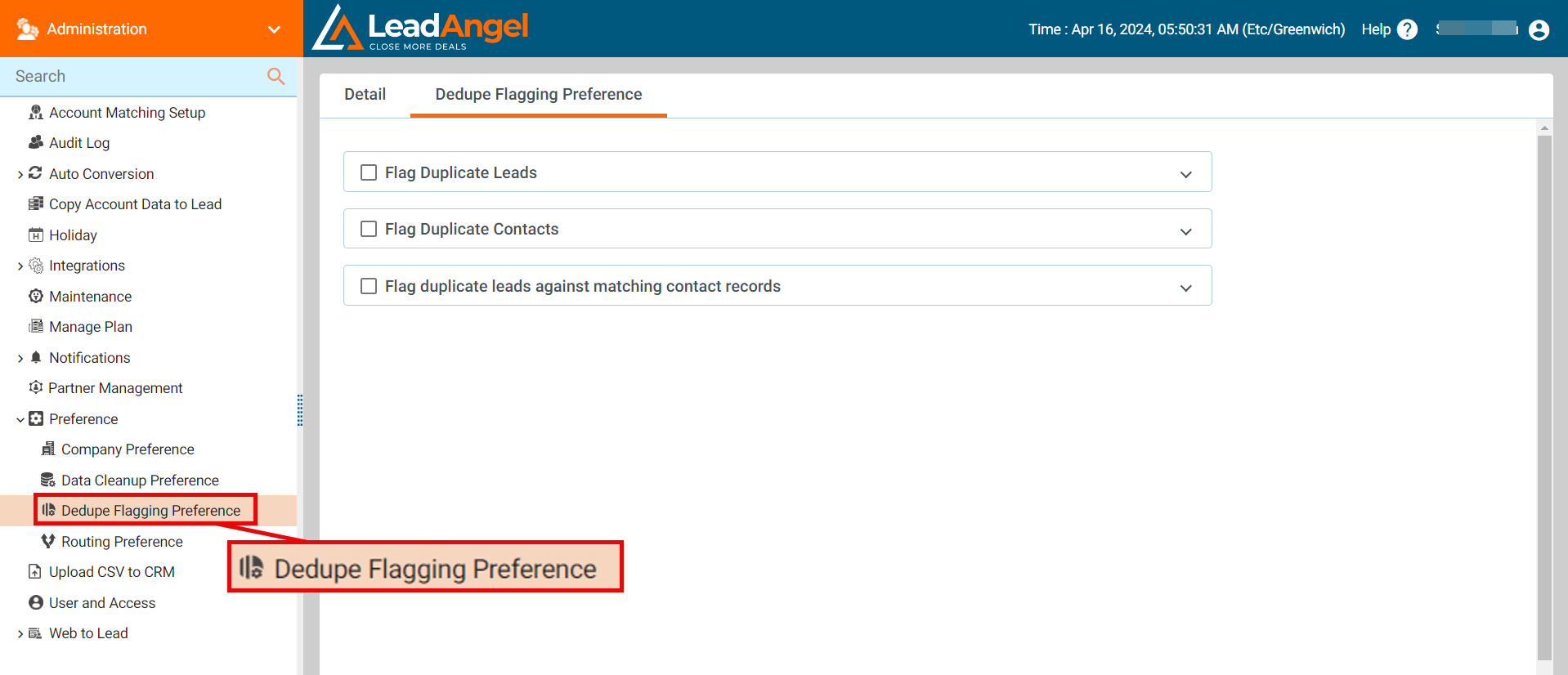
Dedupe flagging preferences allow you to:
- Flag duplicate leads
- Flag duplicate contacts
- Flag duplicate contacts against matching contact records.
¶ 3. Routing Preferences
By default, LeadAngel ignores all inactive users. You must select additional fields to identify sales reps on leave or absent to suspend from receiving leads. If the value is set to FALSE, the sales rep will not receive leads.
You may select Assign to Inactive owner’s manager for routing preferences or you may select the field from the user table to identify inactive or on-leave sales reps.
¶ Steps to Set Preferences
- Sign in to app.leadangel.com
Navigate to: Administration > Preferences
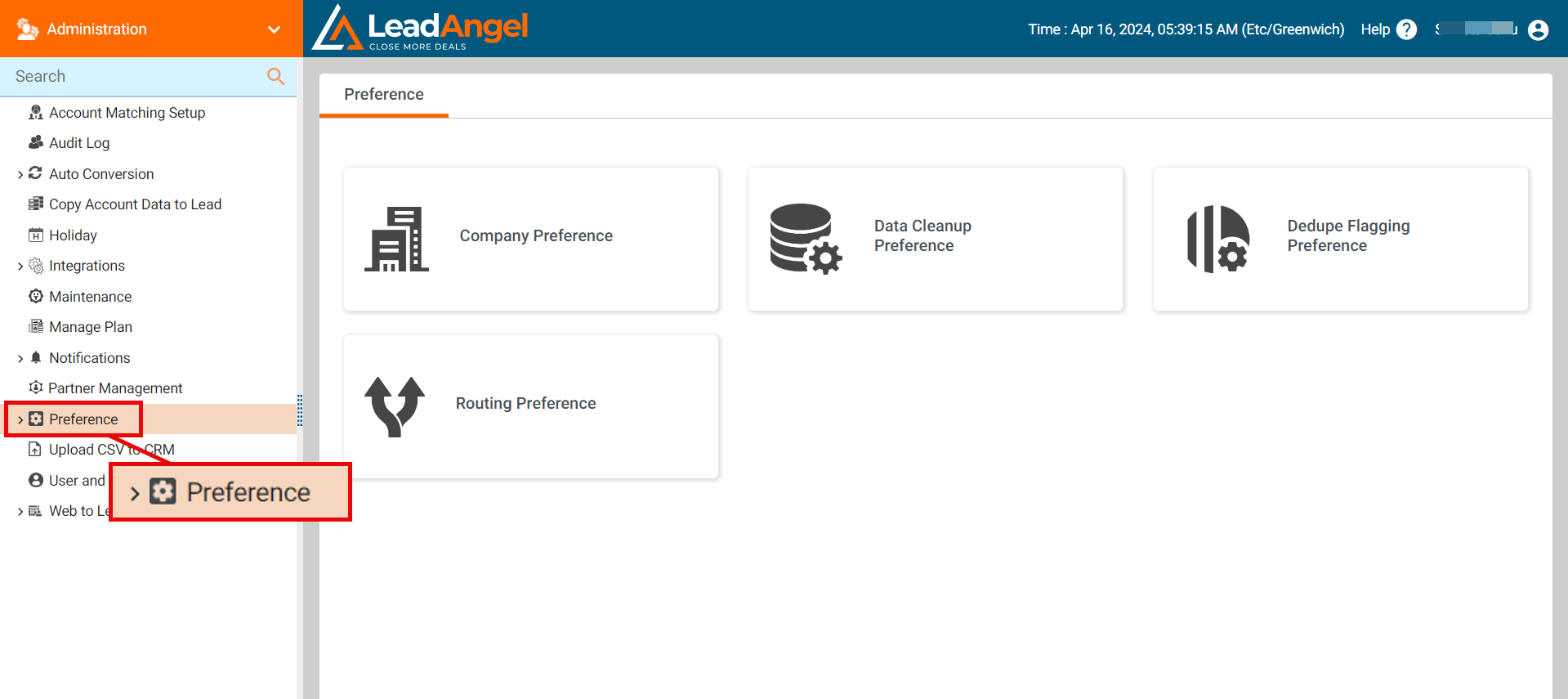
¶ 2(a) Data Cleanup Preferences
Go to Preferences > Data Cleanup Preferences
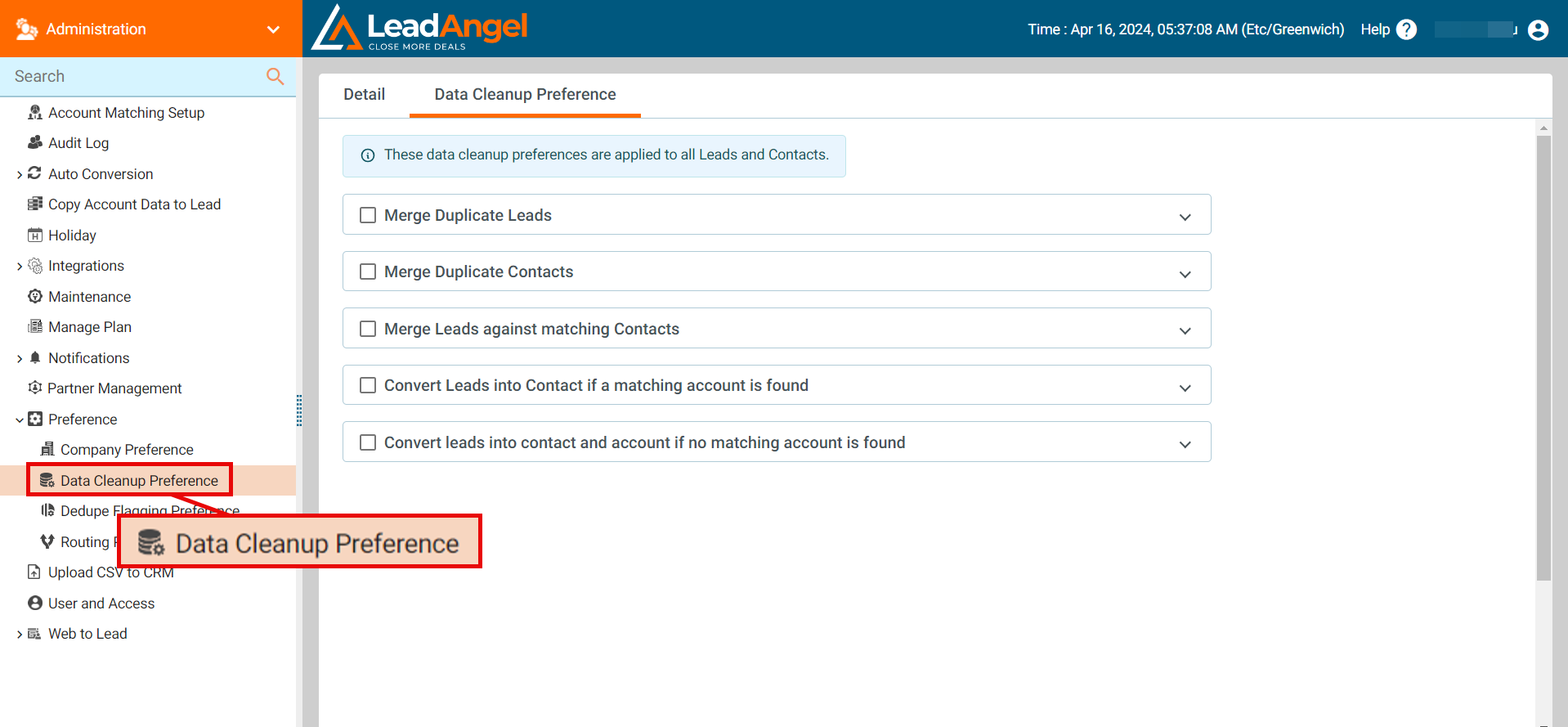
- Choose from available options.
- Selecting any option shows sub-options.
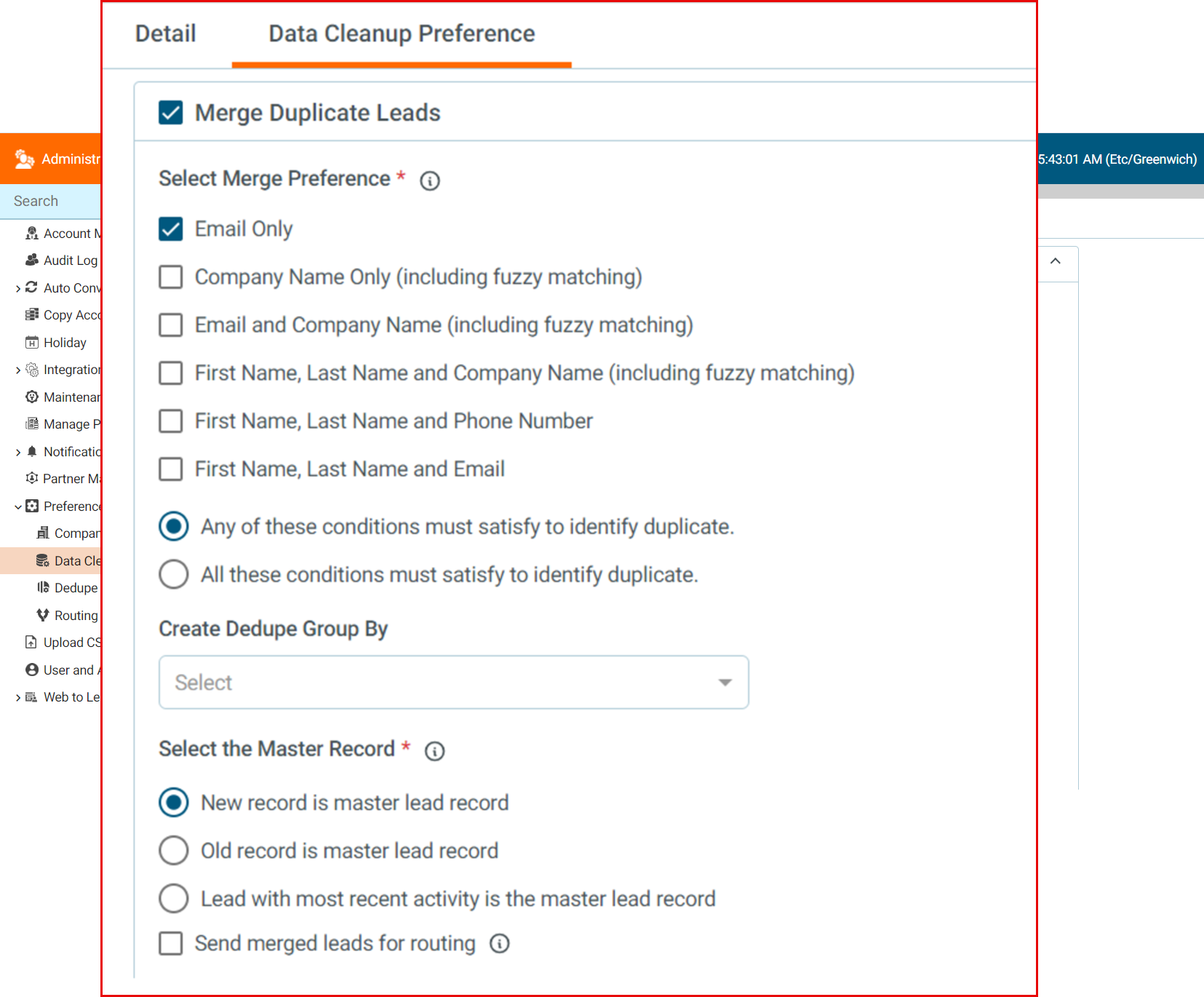
- Choose desired sub-options and click Save.
¶ 2(b) Dedupe Flagging Preferences
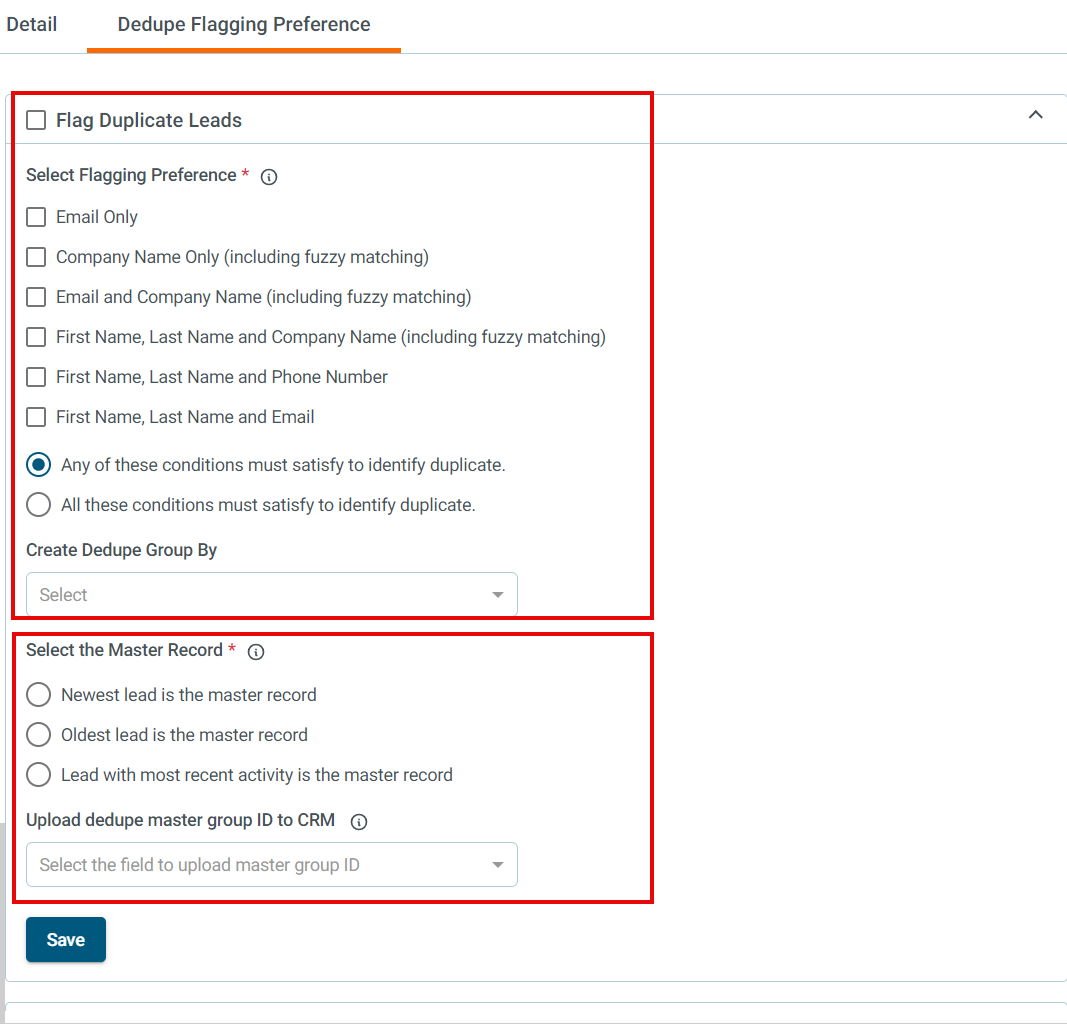
Go to Preferences > Dedupe Flagging Preference
¶ Flagging Preferences (Works for SFDC):
To properly identify duplicates based on the given flagging preferences, you can set up rules to specify which criteria must be met. Here’s a breakdown of how you might set these preferences:
- Email Only: Identifies duplicates solely based on the email address.
- Company Name Only (including fuzzy matching): Identifies duplicates based on the company name with allowance for minor variations or spelling differences.
- Email and Company Name (including fuzzy matching): Identifies duplicates when both the email and a fuzzy-matched company name match.
- First Name, Last Name, and Company Name (including fuzzy matching): Identifies duplicates based on a combination of first name, last name, and a fuzzy-matched company name.
- First Name, Last Name, and Phone Number: Identifies duplicates based on a combination of first name, last name, and phone number.
- First Name, Last Name, and Email: Identifies duplicates based on a combination of first name, last name, and email address.
¶ Duplicate Identification Conditions:
- Any of these conditions must satisfy to identify duplicate: A record is flagged as a duplicate if it meets any one of the selected conditions.
- All these conditions must satisfy to identify duplicate: A record is flagged as a duplicate only if it meets all selected conditions simultaneously.
¶ Create Dedupe Group By:
To add the "Dedupe Group By" option, you can further refine how duplicates are identified by grouping records based on certain attributes before applying the flagging preferences. Here’s how this additional option can be structured:
Dedupe Group By:
- Email: Group records by the domain part of the email address (e.g., @example.com).
- Company: Group records by company name.
- City: Group records by city.
- State: Group records by state.
- Country: Group records by country.
¶ Dedupe Group By with Flagging Preferences:
When using the "Dedupe Group By" option, you first group records based on the selected attribute, and then apply the flagging preferences within each group. This can help to identify duplicates more effectively by narrowing down the scope of comparison.
To implement the "Select the Master Record" option and upload dedupe master group ID to the CRM, you need to define how the master record is determined and then associate a unique identifier (dedupe master group ID) with it. Here's how you can set up this functionality:
¶ Select the Master Record:
- Newest lead is the master record: Designates the most recently created lead as the master record.
- Oldest lead is the master record: Designates the oldest lead as the master record.
- Lead with most recent activity is the master record: Identifies the lead with the most recent activity (such as interactions, updates, etc.) as the master record.
¶ Upload dedupe master group ID to CRM:
After determining the master record within each dedupe group, you'll need to upload a dedupe master group ID to your CRM. This ID serves as a unique identifier for the dedupe group, linking all duplicate records within the group to the master record.
As you click on any of the options under dedupe flagging preferences, you will get sub-options to choose from. Select from the valid sub-options and click on Save.
¶ Scenario-Based Considerations
- Initial Setup:
When setting up the dedupe flagging preferences for the first time, the system does not automatically upload dedupe flags for existing records. The flags will only apply to new or modified records going forward. - Removing Flags:
If a dedupe flag is removed, it does not clear the existing dedupe flag data in SFDC. The data remains intact, and only new deduplication processes will be affected by the removal of the flag. - Changing the Dedupe Flag Field:
If the field to which the dedupe flag is uploaded is changed, the new field will be used in future deduplication jobs. Existing records with dedupe flags in the old field remain unchanged, and only new or updated records will reflect the change.